Track Inventory in Real Time, Including Item Deliveries and Returns


In fast-moving environments like conventions, field service, or equipment rentals, staying on top of inventory is crucial. Missing or overbooked items can lead to project delays, lost revenue, and unhappy clients. To operate efficiently, businesses need a way to track every delivery and return as it happens—with total accuracy and visibility.

Claris FileMaker offers a powerful way to track inventory in real time. With a custom FileMaker app, your team can monitor stock levels across multiple locations, log item deliveries and returns on the go, and reduce manual errors with barcode scanning or automated workflows. The result is a streamlined process that keeps everyone aligned—whether they’re in the office, on the warehouse floor, or at a client site.

Why Real-Time Inventory Tracking Matters

Outdated or manual tracking methods often lead to:

  • Inaccurate Stock Counts – Items go missing or are double-booked.

  • Delayed Deliveries – Teams lose time locating available inventory.

  • Lost Revenue – Unavailable or forgotten items cause missed opportunities.

  • Disjointed Workflows – Teams rely on phone calls or emails to confirm stock status.

These issues are magnified when your operations involve multiple events, frequent shipments, or 3PL coordination.

How FileMaker Simplifies Real-Time Inventory Management

With Claris FileMaker, your inventory system can be built to match your exact workflows. Here’s how it helps:

  • Live Inventory Dashboards
    FileMaker apps show current item counts by category, location, and status. Warehouse teams and project managers can instantly see what’s available.

  • Mobile Check-In/Check-Out
    Staff can scan items in and out using iPads or iPhones, automatically updating inventory in the central database.

  • Track Deliveries and Returns
    Document the delivery, return, and condition of each item. Attach photos or notes to create an auditable chain of custody.

  • Automate Notifications
    Trigger alerts when inventory is low or when returns are overdue, helping you stay proactive.

  • 3PL Integration
    Coordinate inventory movement with third-party logistics providers by syncing FileMaker with external tracking systems or importing manifest data.

Designed for Your Operations

Unlike rigid out-of-the-box systems, FileMaker lets you customize every field, status, or report. Need to track serial numbers, condition reports, or upcoming reservations? Want to generate usage reports by event or client? You can build it all into your FileMaker solution—no coding team required.

Real-time inventory tracking is the foundation of smooth operations, especially when deliveries and returns happen on tight schedules. With Claris FileMaker, you gain full visibility into your stock, streamline coordination with teams and vendors, and prevent costly errors. Interested to learn more about how Claris FileMaker can solve for real-time inventory tracking? Reach out to Kyo Logic here.


Using the Data File Script Steps to Export Container Data

Introduction: A Native FileMaker Solution for Exporting Container Data on Server

For years, exporting container data in FileMaker Server was a challenge. The standard method—Export Field Contents—is not server-compatible, meaning developers had to find workarounds, rely on plugins, or move data processing to the client side.

But now, thanks to FileMaker’s native Data File script steps, you can export container data directly on FileMaker Server—without additional tools, without the container field needing to be on the layout, and without complex scripting workarounds.

If you’ve ever searched for:

  • How to export PDFs in FileMaker Server

  • How to extract container data on a FileMaker scheduled script

  • How to handle container exports without client interaction

… then this guide is for you.

Why This Method Matters

Key Benefits of Using the Data File Script for Container Exports:

  • Works on FileMaker Server Scheduled Scripts & Perform Script on Server (unlike Export Field Contents)

  • No need for third-party plugins

  • Container fields don’t need to be present on the layout

  • More control over file handling & automation

When Should You Use This?

This method is ideal for:

  • Automating scheduled exports of PDFs, images, or documents stored in containers

  • Processing large volumes of container data on the server without client-side scripts

  • Exporting files in a multi-user system where container access needs to happen in the background

  • Generating server-side backups of container data

  • File transfers between FileMaker and external systems

Step-by-Step Guide: Exporting Container Data Using the Data File Script

1️⃣ Determine the File Name & Path

First, define a file path and file name that the script will use. Any valid FileMaker file path will work. In these instructions (and our demo file), we use:

plaintext

CopyEdit

$filepath


This variable will store the full file path of the exported container data.


2️⃣ Check for Existing Files

Before creating a new file, check whether the file already exists at $filepath.

💡 Use the Get File Exists function to determine if the file is present:

plaintext

CopyEdit

If [ Get File Exists ( $filepath ) ]

    Delete File [ $filepath ]

End If


If the file exists, Delete File ensures that the script removes the previous file before proceeding.


3️⃣ Create the New File & Write Data

Now, create a new data file and export the container’s contents.

Step 1: Create the Data File

Use the Create Data File script step to generate the new file. However, note that this does not automatically open the file for writing.

Step 2: Open the Data File

Once the file is created, use Open Data File to make it available for writing:

plaintext

CopyEdit

Set Variable [$fileReference; Open Data File ( $filepath )]


Step 3: Write Data to File

Use Write to Data File to write the actual container data into the newly created file:

plaintext

CopyEdit

Write to Data File [ $fileReference ; Data Source: <ContainerField> ]


This step directly points to the container field you want to export.

Step 4: Close the File (VERY IMPORTANT!)

After writing the data, ALWAYS close the file using Close Data File to ensure proper handling:

plaintext

CopyEdit

Close Data File [ $fileReference ]


Failing to close the file properly may result in corrupted data or issues accessing the file.


How This Method Compares to Export Field Contents


Feature

Data File Script

Export Field Contents

Server Compatibility

WebDirect Compatibility

Works with All File Types


If you need WebDirect compatibility, stick with Export Field Contents. Otherwise, the Data File script offers a more robust server-compatible method.


Try It Yourself – Download Our Demo File!

We’ve put together a demo file showcasing these steps in action. Download it and experiment with the process in your own FileMaker environment.

Download the Demo File


Conclusion: A Game Changer for FileMaker Server Users

Exporting container data in FileMaker Server has long been a pain point for developers. But with the Data File script, you can now:

  • Export PDFs, images, or any file type directly from the server

  • Run automated exports without client-side scripting

  • Eliminate the need for third-party plugins

  • Keep container fields off the layout for better security & performance

If you’ve been struggling with exporting files in FileMaker Server, this method is the native solution you’ve been waiting for.

Have questions? Want to see this in action? Reach out—we’d love to help optimize your FileMaker workflow!


Key Takeaways

  • Data File script works on FileMaker Server Scheduled Scripts & PSOS

  • Supports automated, scheduled exports

  • Ideal for PDF, image, and document handling

  • Fully native—no plugins required!

Ready to streamline your container exports? Let’s talk!

Announcing April’s Kyo Sync Webinar!

Many of our clients rely on Claris/FileMaker for day-to-day operations but often lose connectivity while traveling or working in the field. Although offline usage isn’t a built-in feature, we created KyoSync to fill that gap. Now, you can keep updating your FileMaker solution entirely offline and have your data sync automatically when you’re back online. Join us for our upcoming webinar to see how KyoSync can extend your FileMaker system to handle any connectivity situation with ease.

In this free, 45-minute session, we’ll showcase Kyo Sync—a native FileMaker add-on that lets your team record data even without an internet connection and automatically sync changes once you’re back online.


During the webinar, you’ll learn:

  • How Kyo Sync seamlessly integrates with your existing FileMaker solutions

  • Tips to handle real-world scenarios like conflicting edits and offline updates

  • Easy setup steps to get your organization started fast


Plus, we’ll walk you through a live demo and share practical use cases from clients who have successfully tackled offline challenges. Don’t miss this chance to discover how Kyo Sync keeps your data safe, consistent, and synced—no matter where your users are.


Mark your calendars for April 23 at 12pm ET, and register now by clicking here. We can’t wait to see you there!

Instant Access to Data and Records

Field engineers need instant access to customer histories and past service records to diagnose issues quickly and deliver efficient solutions. Without a centralized system, technicians may struggle with incomplete information, leading to delays in troubleshooting and repeated service visits. Claris FileMaker provides a powerful solution by equipping field engineers with iPads that display detailed customer data, past site visits, and previous problem resolutions—ensuring faster, more informed service.

The Importance of Accessing Customer Histories in the Field

When field engineers arrive on-site, having a full view of a customer’s service history can make the difference between a quick fix and an extended, costly repair. Key details such as previous issues, maintenance history, and past resolutions help technicians:

  • Diagnose problems faster by identifying recurring issues.

  • Reduce service redundancies by ensuring previous solutions are referenced and applied.

  • Improve customer satisfaction by demonstrating an understanding of past service interactions.

Without immediate access to this information, engineers may waste time searching for records or risk making incomplete repairs, leading to follow-up visits and increased operational costs.

Benefits of Using Claris FileMaker for Customer Data Management

By using Claris FileMaker on iPads, field engineers can:

  • Instantly Retrieve Customer Records – Access site visit logs, past maintenance history, and troubleshooting notes.

  • Improve Service Efficiency – Reduce time spent diagnosing issues by leveraging previous resolutions.

  • Enhance Customer Interactions – Show clients a detailed service history, building trust and demonstrating reliability.

  • Sync Updates in Real Time – Ensure that any new findings or resolutions are immediately logged for future reference.

For industries such as HVAC, utilities, and industrial equipment maintenance, having a mobile, data-driven solution eliminates the guesswork and streamlines service workflows.

How Claris FileMaker Powers Field Service Operations

Claris FileMaker provides a customizable platform that allows businesses to:

  • Store and organize customer histories in a structured, easy-to-access format.

  • Enable field engineers to retrieve service records from their iPads in real time.

  • Automatically sync new service updates to a centralized database.

  • Integrate with scheduling and dispatch systems to optimize technician workflows.

By replacing paper records and disconnected digital systems, Claris FileMaker ensures that every technician has the right information at the right time—reducing service delays and improving overall efficiency.

Providing field engineers with instant access to detailed customer histories and past site visit data enhances troubleshooting efficiency and improves customer satisfaction. Claris FileMaker equips teams with a powerful mobile solution that streamlines service workflows and ensures informed, efficient problem resolution. Interested to learn more about how Claris FileMaker can solve for field service data management? Reach out to Kyo Logic here.

Capture Photos and Upload Sample Documents

Field technicians and service teams often need to capture images and upload critical documents while on the job. Whether documenting equipment conditions, recording inspections, or attaching service reports, having a seamless way to link files to relevant records is essential. With Claris FileMaker, technicians can capture photos, annotate images, and upload sample documents directly from their iPads, ensuring all files are securely stored and easily accessible within a centralized database.

The Importance of Efficient Photo and Document Management

Manual file handling can slow down workflows and lead to lost or misfiled documents. Without an organized system, retrieving specific images or reports can become time-consuming, delaying service resolutions and impacting operational efficiency. A digital solution that integrates image and document management streamlines processes, improves documentation accuracy, and ensures that all records are linked to the appropriate job, customer, or service request.

Benefits of Using Claris FileMaker for Image and Document Capture

By leveraging Claris FileMaker, businesses can enhance their documentation process with the following capabilities:

  • Instant Photo Capture & Annotation – Take photos directly within the FileMaker app, add annotations, and link them to specific service records.

  • Seamless Document Uploads – Upload and store sample documents, such as invoices, compliance forms, and service reports, for easy retrieval.

  • Centralized Record Management – Ensure all files are stored securely within a single database, accessible to authorized personnel at any time.

  • Improved Compliance & Reporting – Maintain a clear audit trail of captured images and documents, ensuring thorough documentation for regulatory or customer requirements.

For industries such as field service, construction, and equipment maintenance, having an integrated photo and document capture solution enhances both productivity and accuracy.

How Claris FileMaker Powers Digital Documentation

Claris FileMaker provides a customizable platform that enables businesses to:

  • Capture and annotate images on iPads or mobile devices.

  • Attach photos and documents directly to relevant service or customer records.

  • Automate file organization with structured naming conventions and metadata tagging.

  • Sync captured data with central databases for immediate access by office teams.

By eliminating the need for paper-based documentation and disconnected file storage, FileMaker ensures that critical images and documents are always at your fingertips.

Efficiently capturing photographs and uploading sample documents is essential for maintaining accurate service records and streamlining workflows. Claris FileMaker offers a powerful solution that integrates photo capture, document uploads, and centralized record management into one seamless system. Interested to learn more about how Claris FileMaker can solve for digital documentation? Reach out to Kyo Logic here.

Enabling Tech Engineers to Work Offline

Technical engineers often work in environments where internet connectivity is unreliable or unavailable. Whether conducting site inspections, troubleshooting equipment, or collecting field data, they need a solution that allows them to work offline while ensuring seamless data synchronization once they regain connectivity. With Claris FileMaker’s offline capabilities, engineers can capture critical information in the field and automatically sync it with a centralized database when online access is restored.

The Challenges of Working Without Connectivity

Many industries—such as construction, utilities, and remote infrastructure maintenance—require engineers to operate in locations with limited or no internet access. Traditional cloud-based solutions may not function effectively in these conditions, leading to delays in data collection and reporting. Without an efficient offline solution, engineers are forced to rely on manual methods or risk data loss when attempting to transfer information later.

Benefits of Offline Data Collection with FileMaker

Claris FileMaker provides a seamless offline data management system that ensures engineers can work without disruption. Key advantages include:

  • Uninterrupted Workflow – Engineers can collect data, complete forms, and store information locally on their device.

  • Automated Synchronization – Once an internet connection is restored, data syncs with the central database without manual intervention.

  • Data Accuracy and Consistency – Eliminates errors caused by manual data entry or delayed reporting.

  • Enhanced Productivity – Engineers spend less time worrying about connectivity and more time focusing on their tasks.

This functionality is particularly valuable for industries that require compliance reporting, asset management, or time-sensitive data collection.

How Claris FileMaker Powers Offline Data Management

With Claris FileMaker, businesses can develop custom solutions that enable technical engineers to:

  • Collect and store data securely on mobile devices.

  • Capture signatures, photos, and test results without an internet connection.

  • Sync records to a centralized system once back online, ensuring real-time updates.

  • Integrate seamlessly with enterprise resource planning (ERP) and asset management systems.

FileMaker’s flexibility allows businesses to tailor offline workflows to their specific needs, improving efficiency and ensuring that field data is always accessible when needed.

Conclusion

Enabling technical engineers to work offline while ensuring seamless data synchronization is critical for industries that rely on field operations. Claris FileMaker provides a powerful solution that allows engineers to collect and manage data efficiently, even in areas with limited connectivity. Interested to learn more about how Claris FileMaker can solve for offline data collection and synchronization? Our KyoSync could be the solution for you. Reach out to Kyo Logic here to find out more.

Performing On-Site Testing with iPads

Field technicians need efficient tools to perform on-site testing and collect accurate performance data. Traditional paper-based methods or disconnected digital systems can lead to delays, errors, and inefficiencies in data reporting. By equipping technicians with iPads running custom Claris FileMaker apps, businesses can streamline on-site testing, capture real-time performance data, and ensure accurate reporting and analysis—all within a single, seamless system.

The Need for Real-Time On-Site Testing

On-site testing often involves collecting large amounts of data under varying conditions. Whether measuring equipment performance, conducting inspections, or troubleshooting operational issues, technicians need immediate access to structured, reliable tools. Real-time data entry eliminates the need for manual transcription later, reducing errors and ensuring that decision-makers receive up-to-date, accurate information. By leveraging iPads with custom-built Claris FileMaker apps, businesses can enhance efficiency and improve the quality of their field testing.

Benefits of Using iPads for Field Data Collection

Equipping technicians with iPads running Claris FileMaker apps provides several advantages:

  • Instant Data Capture – Enter test results and in-use statistics in real time, eliminating paperwork.

  • Automated Reporting – Generate reports instantly, reducing administrative overhead.

  • Offline Access – Capture data in remote locations without an internet connection and sync later.

  • Standardized Workflows – Ensure consistent testing procedures and accurate data collection.

For industries requiring compliance tracking, safety inspections, or equipment performance analysis, iPads with FileMaker apps provide a reliable and scalable solution.

How Claris FileMaker Enhances On-Site Testing

Claris FileMaker offers a fully customizable platform that enables businesses to design field-friendly applications tailored to their testing needs. These apps allow technicians to:

  • Perform structured tests with preconfigured workflows.

  • Capture photos, signatures, and real-time sensor data.

  • Integrate with back-office databases for seamless reporting.

  • Generate instant insights that help drive operational improvements.

With its ability to work across multiple devices and platforms, Claris FileMaker ensures that field technicians, analysts, and decision-makers are always connected to the data they need.

Equipping field technicians with iPads running Claris FileMaker apps transforms on-site testing by improving efficiency, accuracy, and real-time reporting. Businesses can collect and analyze performance data seamlessly, leading to better decision-making and operational improvements. Interested to learn more about how Claris FileMaker can solve for on-site testing and data collection? Reach out to Kyo Logic here.

Calculate Order Profitability in Real Time, Including Freight Costs

For businesses operating in cost-sensitive industries, tracking profitability in real time is essential to maintaining strong margins and operational efficiency. Freight costs, in particular, can fluctuate based on fuel prices, carrier rates, and shipping distances, making it difficult to assess profitability accurately without a dynamic system in place. Claris FileMaker provides a powerful solution by offering customizable dashboards that calculate real-time profitability, factoring in all associated costs, including freight.

The Need for Real-Time Profitability Calculations

Profitability isn’t static—costs can shift due to supplier pricing, shipping rates, and unexpected surcharges. Without real-time tracking, businesses risk underpricing products or absorbing hidden costs that eat into margins. By integrating profitability calculations into daily operations, businesses can proactively adjust pricing, negotiate better shipping rates, and optimize supply chain decisions. Claris FileMaker helps streamline this process by automating cost calculations, ensuring that every order is assessed with up-to-date cost variables.

Benefits of Including Freight Costs in Profitability Analysis

Freight costs can significantly impact overall profitability, especially for businesses managing high-volume or low-margin orders. Factoring in freight expenses alongside material costs and operational overhead provides a complete financial picture, allowing businesses to:

  • Set accurate pricing that maintains profitability

  • Identify cost-saving opportunities in logistics

  • Improve decision-making on order fulfillment and shipping methods

  • Enhance forecasting and financial planning

For companies handling large-scale logistics or working with 3PL providers, integrating freight costs into real-time profitability calculations prevents unexpected financial losses and improves overall efficiency.

How Claris FileMaker Powers Profitability Tracking

Claris FileMaker simplifies profitability tracking by offering customizable dashboards. These dashboards can pull in real-time cost data and integrate seamlessly with other trucking and cost-generating platforms. Businesses can build systems that automatically update freight costs, material expenses, and other financial variables, providing instant insights into order profitability. Features like automated reporting, dynamic cost adjustments, and integration with external logistics data ensure that decision-makers always have access to accurate financial information. By leveraging Claris FileMaker, businesses can maintain tighter control over costs and adapt to market fluctuations with confidence.

Tracking order profitability in real time—especially when factoring in freight costs—is essential for businesses looking to protect margins and improve operational efficiency. Claris FileMaker provides the tools to automate cost calculations, generate real-time insights, and ensure every order remains profitable. Interested to learn more about how Claris FileMaker can solve for real-time profitability tracking? Reach out to Kyo Logic here.

Manage Dynamic Costing in Low-Margin Commodities with Claris FileMaker

In the world of low-margin commodities, profitability hinges on a business’s ability to adapt to fluctuating costs. Price changes, market volatility, and supply chain disruptions can quickly erode margins, making real-time cost updates a necessity. For businesses and 3PL providers managing these sensitive markets, dynamic costing tools offer a lifeline by enabling real-time updates and ensuring competitive pricing. Claris FileMaker provides a powerful platform for building flexible systems that streamline cost management and protect profitability in even the most volatile environments.

The Need for Dynamic Costing in Low-Margin Markets

Low-margin commodities are inherently unpredictable. From changing material prices to fluctuating freight rates, businesses must adapt quickly to maintain profitability. For 3PL providers, who often operate as intermediaries between suppliers and buyers, the stakes are even higher. Dynamic costing tools are essential in these markets, enabling real-time adjustments that reflect current market conditions. New Claris FileMaker AI tools allow modelling data to analyze trends and optimize decisions. By integrating dynamic costing into their workflows, businesses and 3PL operators can minimize risk and ensure that every transaction remains profitable.

Benefits of Real-Time Costing Tools

Dynamic pricing tools provide critical advantages for businesses navigating low-margin markets. Real-time updates ensure that costs accurately reflect current market conditions, helping businesses maintain their margins. These tools also enable better decision-making by providing visibility into pricing trends, cost breakdowns, and profitability forecasts. For 3PL providers managing logistics and contracts across the supply chain, dynamic costing systems simplify operations and reduce the likelihood of costly miscalculations.

How Claris FileMaker Powers Dynamic Costing

Claris FileMaker is a robust solution for creating dynamic costing tools tailored to the specific needs of businesses and 3PL providers. With FileMaker, businesses can design systems that integrate real-time market data, automatically update costs, and generate detailed pricing reports. The platform’s flexibility allows users to build workflows that account for variables like freight rates, supplier costs, and exchange rates, ensuring that all aspects of cost management are covered. By centralizing and automating the costing process, Claris FileMaker helps businesses protect their margins and stay ahead in competitive markets.

Managing dynamic costs in low-margin commodities requires tools that adapt to market changes in real time. Claris FileMaker empowers businesses and 3PL providers with customizable solutions that streamline cost management, improve visibility, and protect profitability. Interested to learn more about how Claris FileMaker can solve for dynamic costing? Reach out to Kyo Logic here.


Accelerating FileMaker Development with AI Code Builders

Accelerating FileMaker Development with AI Code Builders

In this post, we’ll explore how AI code builders—specifically ChatGPT Code Copilot—can help you create custom JavaScript widgets for FileMaker. We’ll walk through an example of building a signature pad, discuss best practices for prompting AI, and touch on some ethical and legal considerations involved in using AI-generated code.

Why Use an AI Code Builder?

AI code builders (e.g., ChatGPT Code Copilot, GitHub Copilot, etc.) leverage machine learning models trained on large amounts of programming data. They can assist developers by

  • Generating boilerplate or starter code automatically

  • Suggesting functions and syntax in real time

  • Speeding up iteration on front-end features like HTML, CSS, and JavaScript

AI Code builders allow you to build a widget or page without knowing ANY programming languages.

When used correctly, these tools can save hours of coding and debugging—especially for tasks that don’t necessarily require advanced, custom logic.

Key Considerations – Ethics, Legality, and Privacy

  1. Ethical Impact
    AI-driven tools can automate mid-level coding tasks, potentially affecting developer job roles. While it streamlines certain work, the long-term impact on developer careers is worth watching.

  2. Legal Concerns
    AI generators may source snippets of copyrighted code. While current U.S. legal direction makes direct infringement cases unlikely, it’s prudent to remain cautious about where the code originates.

  3. Privacy
    Anything you share with an AI tool could be integrated into its broader dataset. Never upload confidential information or proprietary code without anonymizing or removing sensitive details.

Best Practices When Prompting ChatGPT

Through trial and error, the webinar revealed a handful of tips to get the best results from AI code builders

  1. Craft a Strong Initial Prompt

    • Be specific about what you want, from the programming language to the functionalities and layout.

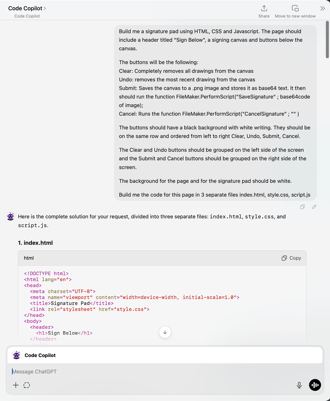
    • Bad Example – “Build me a signature pad using Javascript, CSS and HTML with Clear, Undo, Save and Cancel buttons.”

    • Good Example – “Build me a signature pad using HTML, CSS and Javascript. The page should include a header titled "Sign Below" a signing canvas and buttons below the canvas.

The buttons will be the following

Clear – Completely removes all drawings from the canvas

Undo – removes the most recent drawing from the canvas

Submit – Saves the canvas to a .png image and stores it as base64 text. It then should run the function FileMaker.PerformScript("SaveSignature" ; base64code of image);

Cancel – Runs the function FileMaker.PerformScript("CancelSignature" ; "" )

The buttons should have a black background with white writing. They should be on the same row and ordered from left to right Clear, Undo, Submit, Cancel. 

The Clear and Undo buttons should be grouped on the left side of the screen and the Submit and Cancel buttons should be grouped on the right side of the screen.

The background for the page and for the signature pad should be white.

Build me the code for this page in 3 separate files index.html, style.css, script.js“

  1. Provide Existing Code Snippets

    • If you’re modifying existing code, paste that code into ChatGPT’s prompt.

    • AI often “forgets” prior context or overwrites essential lines if you ask it to regenerate the entire codebase.

  2. Make Incremental Requests

    • After generating an initial version, ask for changes in small, specific steps (e.g., “reduce the button size,” “add rounded corners,” or “change the header’s font size”).

    • Requesting many modifications at once can confuse the AI and lead to broken or incomplete solutions.

  3. Ask for Only the Changes

    • Rather than asking for the entire file again, say “Please provide only the lines that need to be updated or added.”

    • This preserves previously working code and reduces the likelihood of accidental regressions.

  4. Avoid Complex Multi-tasking

    • AI code builders can lose track of context during multi-part tasks. Break them down into small, separate requests.

Step-by-Step Example – Building a Signature Pad in FileMaker

Goal – Create a signature pad that captures a user’s drawing, supports undo/clear, and saves the result as a base64-encoded image inside FileMaker.

  1. Outline Requirements

    • HTML – A simple layout with a canvas, header, and four buttons (Clear, Undo, Submit, Cancel).

    • CSS – Basic styling (button size, background color, alignment).

    • JavaScript – Canvas drawing logic (capturing strokes, undo/redo stacks), plus two FileMaker script calls

      • FileMaker.PerformScript("Save Signature", base64Code)

      • FileMaker.PerformScript("Cancel Signature")

  2. Create a Detailed Prompt
    In ChatGPT, specify –
    “Build me a signature pad using HTML, CSS, and JavaScript, including a header titled ‘Sign Below,’ a canvas, and four buttons. The ‘Submit’ button should encode the canvas as base64 and call FileMaker.PerformScript("Save Signature", <base64>), etc.”

  3. Generate Files
    ChatGPT returns – index.html (or combined HTML file)

    • style.css (for layout and styling)

    • script.js (draw logic and button handlers)

  4. Refine & Test

    • If the AI lumps HTML/CSS/JS together, ask for separate files or placeholders for easy inclusion in FileMaker fields.

    • Test your initial code locally (e.g., open the HTML in a browser). Check if Undo/Clear works and if Submit/Cancel behave as expected.

  5. Integrate Into FileMaker

    • Store the HTML, CSS, and JS in FileMaker fields.

    • Use a calculation field or a “web viewer” that substitutes in the CSS/JS code.

    • Ensure “Allow interaction” and “Allow JavaScript to perform FileMaker scripts” are enabled in the web viewer settings.

  6. Add Final Touches

    • Prompt ChatGPT for style updates (e.g., “Make the header smaller and unbold it,” “Group the Clear and Undo buttons on the left,” etc.).

    • Manually adjust any margins or design elements if ChatGPT’s output isn’t pixel-perfect.

Result: A working signature pad that you can open in FileMaker, draw on, and automatically store the output as a base64-encoded image—perfect for e-signatures or doodles.

Beyond Signatures – A Time-Tracking Example

The webinar also showcased a more advanced JavaScript widget – a time-tracking dashboard built entirely via AI-assisted code, then dropped into FileMaker. It features

  • Dynamic plus and delete buttons for line items

  • Light and dark modes

  • Start and Stop Timers

  • The entire front-end (HTML, CSS, JS) generated by ChatGPT with minimal manual intervention

This advanced use case illustrates how quickly you can evolve from small widgets (like a signature pad) to more complex applications—increasing interactivity and user experience within FileMaker, all powered by AI-generated front-end code.

Closing Thoughts

AI tools like ChatGPT can drastically reduce development time and open doors to front-end interactions you might not otherwise build by hand. The key is prompt engineering—learning how to give precise instructions and incremental feedback.

Remember

  • Always keep ethical, legal, and privacy considerations in mind.

  • Triple-check AI-generated code for security issues and correctness.

  • Use a “rinse and repeat” process – prompt, refine, test, and integrate.

By leveraging these best practices, you’ll be well on your way to creating powerful, user-friendly JavaScript widgets that enhance FileMaker’s functionality—without having to become a front-end development expert.

Further Resources

Have questions or want to share your own AI-generated FileMaker widget? Drop a comment or reach out to continue the conversation. Happy coding!