September Updates: Claris Studio Release and 19.5.4 Update

This September, Claris had several new announcements and updates. Of course, we can expect to see developments and news ramp up as Claris continues to build towards their recently announced rebranding and overhauling suite of offerings.  In addition to the typical tweaks and fixes, there are some exciting changes that pave the way for the future of Claris FileMaker. Users can expect more updates in line with this one as Claris continues to roll out their previously announced plans.

Claris’s major announcement is the release of Claris Studio. Part of their new lineup of offerings and naming convention, Claris Studio replaces Claris Connect. It offers the same functionality: insights through charts, reports, and dashboards. 

Claris Studio allows users to run reports, create charts, and more. Data is updated and reflected in real-time across the Claris platform. Features include:

  • Dashboard: Claris Studio’s dashboard allows for quick and easy access to a holistic view of your data.
  • Forms: Collect and view data.
  • Spreadsheets: Aggregate data and sort or filter it by specific parameters.
  • List-detail: Organize information into a list, with the ability to view or edit.
  • Kanban: Track project progress.

Claris has also promised that users can expect other features and functionality to be added in the future.

Update 19.5.4 is here and it brings several helpful updates. The most notable of these is the in-software news updates.

Highlights include:

  • In-product Notifications: Claris can now share the latest news directly in the FileMaker Pro and FileMaker Server software. Users can be alerted to new changes and updates as they roll in.
  • macOS: The quick start experience is no longer available.
  • New Files: FileMaker Pro and FileMaker Server can now open files that could not be reopened after modifying the settings in the File Options dialog box with a limited access account.

Other recent updates include:

    • Use a Single Claris ID: A single email and password can be used to log into Claris Pro, Claris Studio, and all other Claris products. It’s a simple but appreciated quality of life change.
    • New File Extension: Apps created with Claris Pro now use the extension “.claris”. Claris server can now host these files.
  • Claris Go App: Claris Go will soon be available on the app store for iOS and iPadOS.

Kyo Logic will continue to bring you exciting Filemaker news and updates. If you have any questions about these changes, or you’d like to know how FileMaker can work for your business, you can reach out to us here.


FileMaker Pro vs Zoho

Claris FileMaker Pro and Zoho are both popular database solutions. If you’re shopping around for a database that works well for your business, deciding between the two may feel overwhelming, or even confusing. But, there are several important differences between the two, and knowing these differences may help make your decision easier.

Zoho

Zoho CRM’s Creator Tools are a low-code development platform designed for drag and drop application building. It comes with over 60 applications prebuilt, making it easy for those with no knowledge to snap something together (relatively) easy.

This accessibility translates to its entry fees. Zoho has a free trial that’s fairly limited: it only allows for a maximum of two users and three applications. However, it does allow small businesses to take it for a “test drive” at no cost. 

It also allows for slightly more flexibility in terms of pricing. Although it’s cost for individual users is more expensive ($25 per month per user for Zoho vs $19 per month per user for FileMaker Cloud), Zoho allows for single person accounts. FileMaker Cloud requires 5 users at minimum.

Zoho offers unlimited users which (pricing notwithstanding) makes scalability easy as businesses grow.

Zoho offers one major thing FileMaker does not: native Android support. There’s a Zoho app for both Apple and Android devices, making it easy to access regardless of the device employees are using. While Android users can use FileMaker, they have to do it via FileMaker’s web tool, WebDirect (as opposed to an application).

Claris FileMaker Pro

FileMaker Pro is also a database solution, this one a RDBMS (relational database management system) with its own front-end GUI. Frankly, it may not be as simple out-of-the-box as Zoho. Zoho prioritizes making things as easy as possible, while FileMaker can be incredibly powerful in the hands of the right developer. It may not be as intuitive for the average person, but virtually any database solution is possible through FileMaker.

Claris Connect also allows FileMaker Pro to interface with virtually any existing application. If your team already uses Outlook or Slack (or any other number of software), FileMaker Pro can easily communicate with them. It effectively slots into your existing infrastructure. It’s that simple.

That flexibility and simplicity can also be found in FileMaker’s reporting features. FileMaker Pro automatically creates table, list, and form views as databases and forms are added. Scripting and customization can all be done within the GUI with very limited coding knowledge.

FileMaker Pro also allows for scalability. The platform itself allows for nine simultaneous users, which at first glance, isn’t many. But FileMaker Server means that you can rent out servers as you grow, for hundreds of consecutive users accessing the database.

It should be no surprise that FileMaker Pro’s security measures are equally as flexible. Administrators can restrict users down to the most granular level, so departments or individual employees can access some databases, layouts, or fields and not others.

Conclusion

Zoho is a great alternative for smaller businesses and those who have no experience with building out low-code and no-code platforms. For small businesses that anticipate fewer than 4 users, it may even be cheaper.

Of course, Zoho doesn’t scale as well from a pricing perspective. FileMaker’s minimum of 5 users at $19 per month is  a total of $95. That’s already $5 less than 4 users on Zoho. As the number of users increases, so too will the pricing disparity.

While Zoho can be great (especially for smaller businesses), FileMaker Pro offers better pricing and potentially more flexibility and options in the long-term. This is especially true in the hands of a capable development team. If you want to learn more about developing custom platforms for your business, you can contact Kyo Logic here.

What it Means to Be a Platinum Certified Claris FileMaker Developer

“Developer” is a broad title. It’s so broad, in fact, that it’s sometimes difficult to parse, especially for industry outsiders. While all developers create software (or contribute to the creation of software in some way), there are dozens of branches and proficiencies. Individual developers may focus on writing code, strategizing, or providing quality assurance. There are a staggering number of programming languages that individuals or teams may choose to focus on.

And that’s all without mentioning the specializations within that. Entire companies may specialize in building customer experience portals, internal communications applications, or back-end sales tools. They may focus entirely on web development, and within that, focus on a handful of needs.

There’s nothing wrong with being highly specialized, of course. There’s such a breadth and depth of knowledge when it comes to development, that it’s essentially necessitated. But it’s precisely for this reason that Claris, the creator of FileMaker, has a certification process and a partner program. The certifications are tied to specific services offered, as well as overall knowledge. Currently, the certifications  and partner classifications available are as follows:

Certified: These partners have passed the FileMaker Certification exam. This is a timed, multiple-choice exam that tests for FileMaker understanding and application.

Consulting: These partners will work with you to create a custom application, including planning and eventual deployment.

Training: This certification goes to partners who focus on teaching custom application development. This includes teaching developers and non-developers alike.

Reselling: Resellers offer authorized licenses of Claris FileMaker and other Claris products. While you can purchase FileMaker directly from Claris, these resellers may offer Claris products alongside other software, often at a discount.

Hosting: Hosting partners will offer solutions for hosting your custom software in the cloud.

Connect: These partners focus on Claris Connect, which assists with workflow automation and integration.

As noted, there are a variety of certificates that individual developers and corporations can hold, but the highest honor is a platinum certification. 

Platinum partners are hand-picked by Claris for their technical prowess and excellent customer service— there are only a handful of Platinum Certified Claris FileMaker developers in the country. Furthermore, they’re innovators in the space, redefining what FileMaker can do and sharing these discoveries with Claris. They offer comprehensive services and complete, holistic solutions. Platinum partners will offer virtually all of the services and options listed above. 

For example, at Kyo Logic (a Platinum Certified Claris FileMaker Developer) we offer development, hosting, and license management. If you want to learn more about how a Platinum Certified developer can help you, please contact us here.

Claris FileMaker is About to Have a New Name

At its most recent Webinar update, Claris announced a name change that will impact its offerings. Long-time FileMaker users are probably aware this isn’t the first time the tech giant has changed names; Claris previously changed its name to “FileMaker” and then back to Claris in recent years.


What does this mean for Claris products? There’s a naming overhaul planned and a spiffy new gradient visual branding to go along with it. The name changes themselves are as follows:

  • FileMaker Pro is now Claris Pro
  • FileMaker Server is now Claris Server
  • FileMaker Go is now Claris Go
  • Claris Connect is now Claris Studio


It’s a pretty simple change to understand, and one that customers will pick up on quickly. Claris is ditching the “FileMaker” moniker and branding everything with the parent name. Interestingly, Claris promised that while Claris Studio will contain what used to be Connect, it will also be the umbrella for “new stuff.” Claris Vice President of Engineering, Peter Nelson, describes the new stuff as “functionality that will be available as part of the Claris platform.” While they didn’t get into the details, it sounds like they’ve got big plans in terms of expanding on what they offer their customers. Claris is anticipating the initial release of Claris Studio this fall.


Claris sees this as a way to create a central identity across all platforms while also allowing for better integration between platforms. This change will also make it easy for new clients to adopt these platforms. Claris also assures their existing users that nothing will fundamentally change for existing platforms. To put it more bluntly, these preexisting platforms won’t break as Claris updates their offerings.


Of course, this is just the foundation Claris is placing, and they promise to have more in store in the near future. At Kyo Logic, we’ll be sure to monitor and update as Claris rolls out new developments. We’re excited to continue to use Claris tools to create the best custom platforms and databases for our clients.

Understanding the Nuances of Mobile Design

There are virtually countless considerations to make when designing a website or application: typefaces and font hierarchies, design elements, colorways, workflows, CTAs… the list is endless. Most importantly, brands must envision how these elements coalesce to provide a positive user experience that’s reflective of your offerings.

Half of all web traffic comes from mobile devices, and Apple and Android applications are naturally being accessed from a phone or tablet. Understanding how users interact with a mobile device is critical in optimizing the user experience.

When designing a website intended for both desktop and mobile, the most obvious difference is alignment. Monitors and laptop screens are traditionally horizontal, while phones are vertical. A gorgeous pop-out menu with dozens of items might look amazing on desktop, but squished or cut-off on a phone. Intricate fonts that make your brand stand out might be virtually unreadable on a mobile device. Text can get squished. Buttons may feel out of reach.

Organize Content for Mobile

As mentioned, great desktop sites don’t translate well to an optimal mobile experience. Cramming detailed menus and complex infographics onto a tiny screen just doesn’t work. Vertical dropdown menus make navigating a website much simpler for mobile users. 

Collapsible categories are also incredibly useful. Browsing dozens of options on a desktop is fine, but daunting on mobile. Allowing users to hide or show relevant categories will ensure their precious screen real estate isn’t being taken over by info that isn’t necessary for their experience.

Be Mindful of Touchscreens

A critical button or menu at the top of a screen might not mean much for desktop users, but it’s effectively out of reach for visitors on mobile. People tend to browse on their phones with one hand. Their other hand might be preoccupied holding a subway pole, a baby, or any number of other things. As such, placing menus and CTAs at the bottom of the screen— where their thumbs can easily reach— makes for a much better user experience.

Streamline

The faster a user can complete a task, the better. Mobile applications and sites should prioritize their primary function above all else. For example, an ecommerce app should make it easy for users to open the app, find their products, and make a purchase. This may involve placing a core group of popular items front and center, as opposed to the eye-catching graphics they would’ve seen on the desktop site.

Long, drawn-out forms are also discouraging for mobile users. Simplify the number of fields when possible, or place them on multiple screens.

Integrate Other Phone Applications

Mobile users expect certain functionalities when selecting them on their phone. For example, a contact page with a phone number and email should open those related applications. Links to relevant apps in their app store and addresses that open a map application are also considered standard integrations.

Optimized mobile designs mean less obstacles and pain points for customers to navigate. The easier an app is to use, the more likely a customer can access the information they need to have a successful interaction. If you’re looking for ways to design a fantastic mobile app for your company, Kyo Logic would love to hear from you. You can contact us here.

The Power of the Pomodoro – Time Management in the COVID World

The world we live and work in has changed drastically over the past few months, since COVID-19 entered our lives. It has been the biggest change that most of us have ever gone through. While this change has affected us in every aspect, from traveling, to socializing, to going to the grocery store, it has affected us equally in the workplace.

For the first time ever, it is now the rule as opposed to the exception to work from home. Thousands of companies are transitioning to full time remote workforces and this trend will not go away even if COVID-19 does. While it is certainly comfortable and easy to roll out of bed and start working, it is natural to lose focus more easily than when you were in the office.

If your new virtual work life has made it focusing on your work difficult, know that you are not alone and that we have a technique just for you. This is a technique that we at Kyo Logic have adopted for years and have found brings great results to our team, allowing our developers to focus on the task at hand even when all of the distractions in the world circulate around them.

The technique we use is called the Pomodoro, named after a tomato-shaped timer that the original inventor of the technique, Francesco Cirillo, used. 

The technique is pretty simple. You spend 25 minutes working on a task and then take a 5 minute break, making each Pomodoro 30 minutes. Now, there are no rules saying you have to do Pomodoros in 30 minute intervals. At Kyo Logic, we have modified our Pomodoros to be 60 minutes with 50 minutes working and a 10 minute break.

The reason why the Pomodoro is a powerful tool is because of two key factors: 

1. It breaks up your day into multiple smaller periods, allowing you to focus each period on a single task. Everybody has been there on a day where you have more on your plate than you can possibly accomplish. It’s petrifying and can get overwhelming. We have seen that a side effect of having too much on your plate is that you spread your focus around to too many tasks, ultimately completing none of them. If you start your day by scheduling out your Pomodoros, you can know that as long as you follow the plan, you will get to everything you need. No need to worry!

2. It includes short, frequent breaks, which allow you to clear your mind, handle the items that would normally distract you from your focus and get yourself ready for the next task. This part of the Pomodoro is really what makes it special, especially in the virtual workplace. One of the biggest struggles that I and most of my team members have is transitioning focus from one task to the next. With the Pomodoro, focus transitioning is a built-in feature.

So, are you ready to take on your new virtual workplace one Pomodoro at a time? To help make this a reality, please download our free Pomodoro Timer below.

Download Pomodoro Time File

Please complete this form to download the FREE file.

This field is for validation purposes and should be left unchanged.
Name(Required)

Improve Your FileMaker Development with These Five Tips

FileMaker can be a powerful platform that if used wittingly, can help you build robust applications. Here are some of the valuable tools that can take your development to the next level:

  1. The Script Debugger

An outstanding standalone tool provided in FileMaker Pro Advanced that offers the capability of debugging scripts, which can be launched from the script workspace by pressing a button or even a script trigger.

A screenshot of a cell phone

Description automatically generated

The script debugger gives you full control of stepping into each script step and provides full details in the call stack from script parameters to sub scripts. It even lets you know from which file the script is from. This can come in handy when working in multi-file solutions. For more information please visit FileMaker documentation on script debugger – https://fmhelp.filemaker.com/help/16/fmp/en/index.html#page/FMP_Help/debugging-scripts.html

  • The Data Viewer

It goes hand in hand with the script debugger like peanut butter and jelly. It displays real time values for a currently running script’s variables and fields.

A screenshot of a cell phone

Description automatically generated

The “Watch” tab on the top right will give you the ability to specify fields or calculations to monitor whether during debugging or simply during general development and it works like a charm!

  • The Shape Tool

An often-underappreciated friend of mine which may seem like a graphical block to many; to me, it is a smart image resizing element of a layout that helps with proportioning and sizing of an image. In layout mode, you can create the shape you desire your image to be, in the appearance tab, change its fill to an image, and after selecting the image, the dropdown just below the image sample will give you the option to “Scale to fit” and voila! You can resize your image while not losing its original proportion.

A screenshot of a computer screen

Description automatically generated

On the right we can see the rectangle object with an image as the fill and to its right we can see the imported image with some proportion issues due to resizing, not to say it’s everyone’s preferred method of handling images in FileMaker, but it can prevent a lot of headaches.

  • JSON Script Parameters (JSONSetElement calc)

Surely many of you know or heard of JSON and some may or may not have used it in FileMaker. Let’s say you are used to making script parameters a straight forward text or number, or even a field, but how would you pass multiple parameters during a script trigger or when the user clicks a button?

A screenshot of a cell phone

Description automatically generated

With a few adjustments and a little bit of knowledge of JSON syntax, the sky is the limit! You can pass as many parameters as needed by adding multiple JSON elements to the JSONSetElement calculation in the script parameter. And from the script side, you can call the JSONGetElement calculation to grab the value of the element needed. For more information on JSON calculations you may visit: https://fmhelp.filemaker.com/help/16/fmp/en/index.html#page/FMP_Help/json-functions.html

A screenshot of a cell phone

Description automatically generated
  • Claris Community

The FileMaker community, now known as the Claris community, may not be a standalone tool for FileMaker Pro Advanced, but it is the place where bright minds collaborate and help each other get through some of the most difficult obstacles that FileMaker can present. You may discuss FileMaker Server, FileMaker Go, FileMaker WebDirect, and the list goes on, if you don’t believe us just ask them yourself: https://community.claris.com/en/s/

Scannability in Scripting

What is Scannability?

Scannability is an attribute of any written piece, including FileMaker scripts, that help the reader find pertinent information quickly.

Why is High-Scannability in scripting important?

  • Easier and faster way to understand the purpose and actions of the script
  • Reduced errors in comprehension of the code and recollection of the specifics
  • Reduced strain on developer’s focus

What does High-Scannability look like?

It is a clear naming convention for scripts, which looks like:

You will also find a detailed purpose/notes, clear sections of scripts, business logic details, and effective comments.


What does Low-Scannability look like?

Below is the same script without all of the above elements discussed. Consider the difference in time spent between the Low-Scannability version and the High-Scannability version. Try to imagine these different scenarios considering the difference in the two:

  1. Report to the user what the logic is for deleting time sheets.
  2. Re-enable this schedule on FileMaker Server after installing a new FMS version. Determine which day of the week to set it up for.
  3. As a developer seeing this for the first time, determine the purpose and expected result of this script.
  4. Debug an issue when creating time sheets (especially if they are not properly linked to an appointment).

What practices should developers employ to ensure their code has a High-Scannability level?

It all starts with this: Adopt the perspective of a future developer. Assume this future developer is lacking any knowledge of business logic or any other elements of the code base.

From here, make sure your code meets the following criteria:

  1. The script is easy to find within the workspace; follows clean naming convention.
  2. The purpose of the code is explicitly stated at the top.
  3. Any parameters for the script are explicitly stated.
  4. There are clear “Sections” of the script.
  5. Any calculations that are beyond the “basic” level have commenting, which can detail the expected result(s).
  6. All business logic should be commented throughout the script where applicable. The future developer should not draw questions or have to make assumptions.

Kyo Logic eSignature Add-on – How to turn a Database Feature into an Add-on

With the recent release of Claris’ FileMaker 19, Claris introduced a new tool called an Add-on, which allows you to drag and drop a ready-built feature into your database at the drop of a hat. Watch the video below to learn how to take an existing feature in a database and turn it into an Add-on. We will be using our eSignature Application as a base, so feel free to download that file and follow along.


eSignature Add-on Download

Please complete this form to download the FREE file.

This field is for validation purposes and should be left unchanged.
Name(Required)

Kyo Logic eSignature Application – Using the Power of CLARIS FileMaker 19 to Enhance your Application

With the recent release of Claris’ FileMaker 19, developers around the world are reveling in all of its new capabilities. Today we will be taking a deeper dive into two new capabilities WebDirect Card Windows and JavaScript in Web Viewers. We will show you how they can be utilized to greatly enhance your FileMaker database.

WebDirect Card Windows

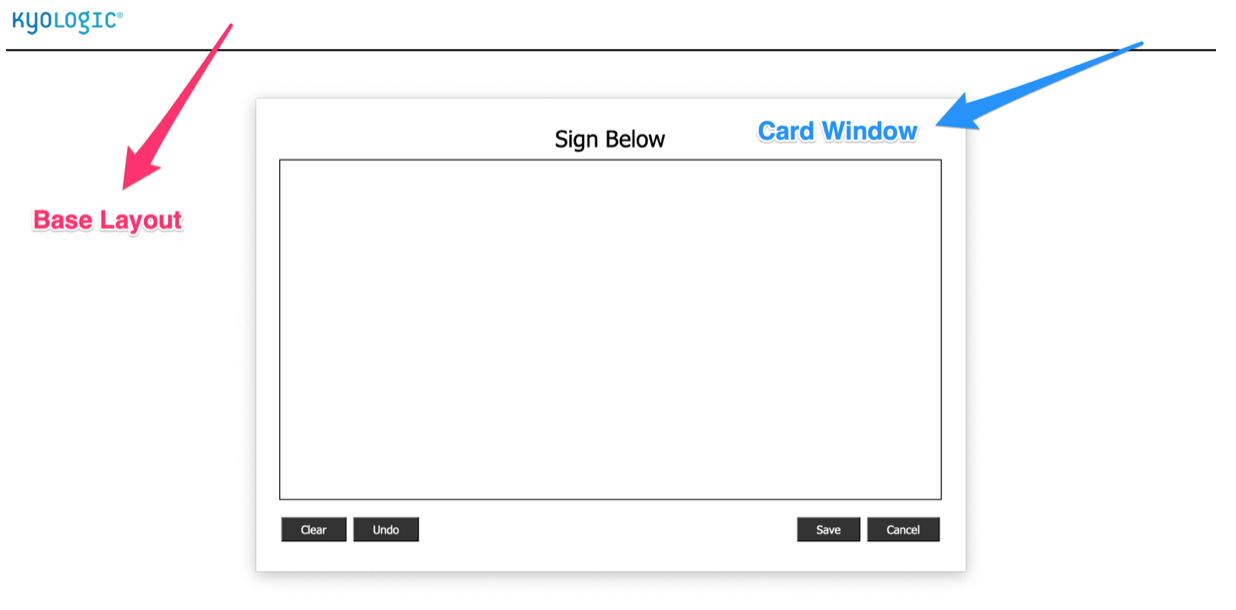
            Since the release of FileMaker 16, Card Windows have taken the FileMaker world by storm. They have allowed databases in FileMaker Pro and FileMaker Go to layer a window on top of another window as shown below.

Starting with FileMaker 19, this functionality has now been brought to WebDirect!

JavaScript in Web Viewers

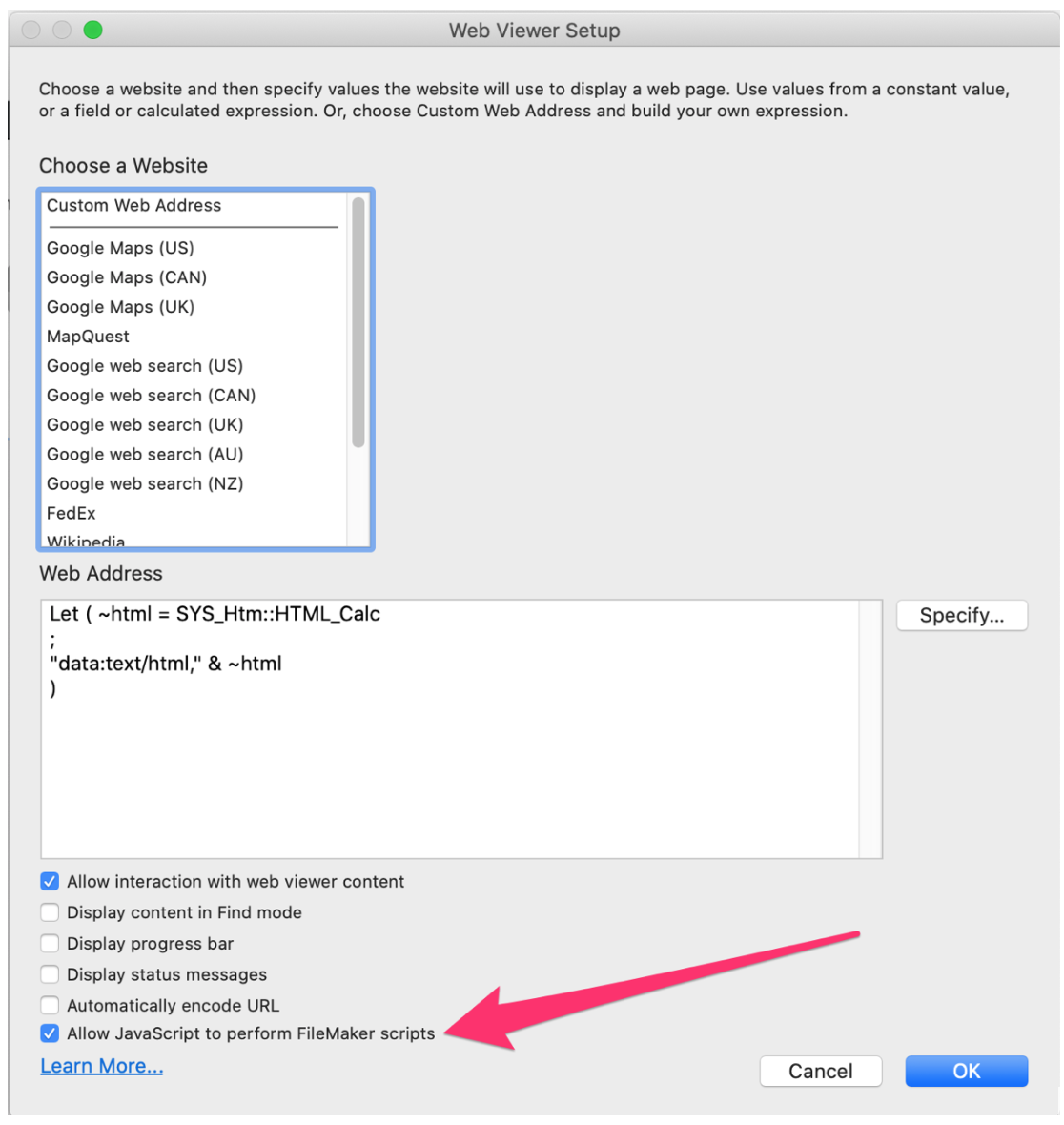
FileMaker has added a new function to Web Viewers called “Allow JavaScript to perform FileMaker scripts.” You can see below where to navigate to turn this on in the Web Viewer Setup.

What this allows you to do is enter the below JavaScript function into the JavaScript code in your Web Viewer. This will trigger a FileMaker script to be run as a result of an action taken within the Web Viewer.

[arve url=”https://kyologic.com/wp-content/uploads/2020/05/Signature.mp4″ /]

In the eSignature Application tool we utilize the open source signature pad code provided here https://github.com/szimek/signature_pad  (Thank you Szymon Nowak!) as the base for the web viewer code.

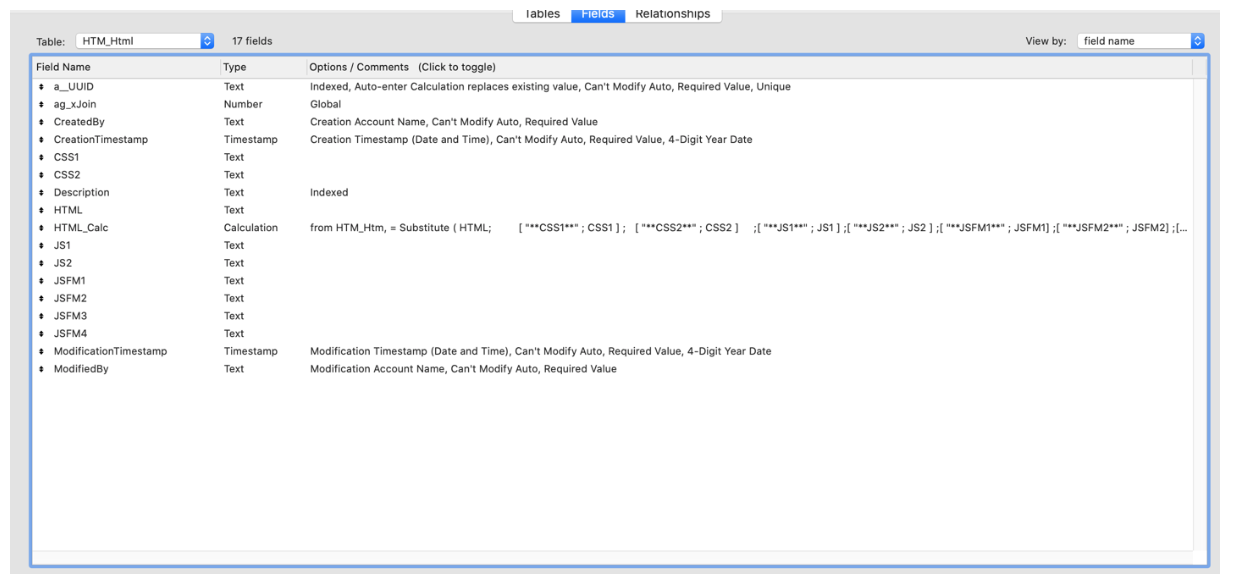
We have set up each element of the code in its own field in the HTM_Html table and combine the individual elements into the HTML_Calc field, which is what the Web Viewer reads and displays.

The elements in our code, which have been added to our FileMaker functions, are JSFM1 and JSFM2.

JSFM1 Is the Function that will be called upon selecting Save and JSFM2 upon selecting Cancel from within the Web Viewer.

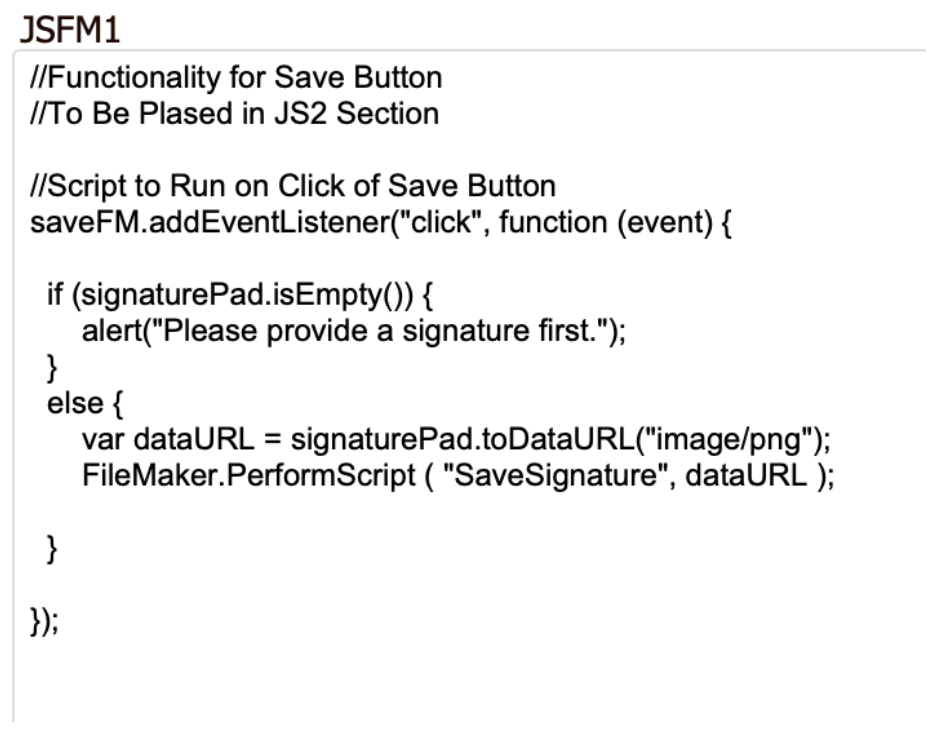
Here is a look at what the field JSFM1 contains:

As you can see here, when the Save button is clicked the function will run and, assuming that it is not empty, will first save the image as base 64 encoded text and then run the script SaveSignature in FileMaker.

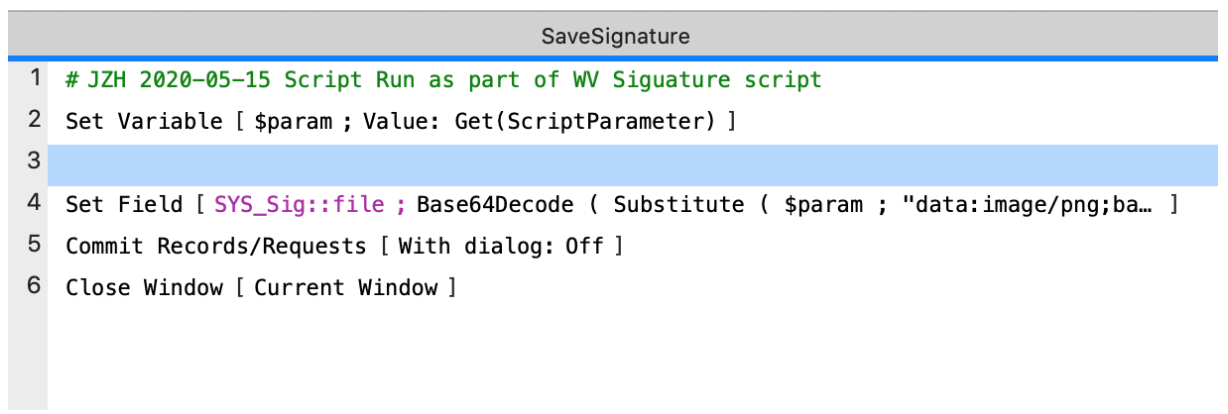
SaveSignature simply pulls in the dataURL as the parameter, decodes and formats it to be a png. Than sets it to the container field and closes the card window. It’s as easy as that. No more unnecessary data api work arounds!

It is important to note that with FileMaker 19, it is no longer necessary to base64 encode your web viewer code on WebDirect. In order for the FileMaker.PerformScript function to work from within a web viewer in WebDirect, the webviewer code cannot be base64 encoded and must start with datatext/html,

Download eSignature Application

Please complete this form to download the FREE file.

This field is for validation purposes and should be left unchanged.
Name(Required)