Field engineers need instant access to customer histories and past service records to diagnose issues quickly and deliver efficient solutions. Without a centralized system, technicians may struggle with incomplete information, leading to delays in troubleshooting and repeated service visits. Claris FileMaker provides a powerful solution by equipping field engineers with iPads that display detailed customer data, past site visits, and previous problem resolutions—ensuring faster, more informed service.
The Importance of Accessing Customer Histories in the Field
When field engineers arrive on-site, having a full view of a customer’s service history can make the difference between a quick fix and an extended, costly repair. Key details such as previous issues, maintenance history, and past resolutions help technicians:
Diagnose problems faster by identifying recurring issues.
Reduce service redundancies by ensuring previous solutions are referenced and applied.
Improve customer satisfaction by demonstrating an understanding of past service interactions.
Without immediate access to this information, engineers may waste time searching for records or risk making incomplete repairs, leading to follow-up visits and increased operational costs.
Benefits of Using Claris FileMaker for Customer Data Management
By using Claris FileMaker on iPads, field engineers can:
Instantly Retrieve Customer Records – Access site visit logs, past maintenance history, and troubleshooting notes.
Improve Service Efficiency – Reduce time spent diagnosing issues by leveraging previous resolutions.
Enhance Customer Interactions – Show clients a detailed service history, building trust and demonstrating reliability.
Sync Updates in Real Time – Ensure that any new findings or resolutions are immediately logged for future reference.
For industries such as HVAC, utilities, and industrial equipment maintenance, having a mobile, data-driven solution eliminates the guesswork and streamlines service workflows.
How Claris FileMaker Powers Field Service Operations
Claris FileMaker provides a customizable platform that allows businesses to:
Store and organize customer histories in a structured, easy-to-access format.
Enable field engineers to retrieve service records from their iPads in real time.
Automatically sync new service updates to a centralized database.
Integrate with scheduling and dispatch systems to optimize technician workflows.
By replacing paper records and disconnected digital systems, Claris FileMaker ensures that every technician has the right information at the right time—reducing service delays and improving overall efficiency.
Providing field engineers with instant access to detailed customer histories and past site visit data enhances troubleshooting efficiency and improves customer satisfaction. Claris FileMaker equips teams with a powerful mobile solution that streamlines service workflows and ensures informed, efficient problem resolution. Interested to learn more about how Claris FileMaker can solve for field service data management? Reach out to Kyo Logic here.
In today’s fast-paced supply chain environment, real-time delivery tracking is no longer a luxury—it’s a necessity. Timely, accurate updates keep operations running smoothly and ensure that all stakeholders, from internal teams to clients, are informed every step of the way. Whether you’re a manufacturer coordinating deliveries or a 3PL provider managing complex shipping networks, having up-to-the-moment delivery data reduces uncertainty and improves customer satisfaction. Claris FileMaker offers a customizable platform that centralizes delivery data, providing your team and clients with real-time visibility into shipment progress.
Why Real-Time Delivery Tracking Matters
Supply chain disruptions, delays, and miscommunication can easily ripple across operations, affecting production schedules and customer commitments. With real-time delivery data, businesses can proactively address potential delays, reroute shipments if necessary, and keep all stakeholders informed. This transparency not only streamlines operations but also strengthens relationships with customers who value accurate, up-to-the-moment updates. For 3PL providers, real-time tracking becomes even more essential, as they need to provide both shippers and receivers with clear, reliable delivery information.
Benefits of Centralized Delivery Data
When delivery data is centralized within a single platform, businesses gain full visibility into their logistics operations. Benefits include:
Faster response times when issues arise
Improved internal coordination between sales, production, and shipping teams
Enhanced customer service through accurate delivery updates
Better reporting and post-delivery analysis
For companies working with 3PL providers, integrating external data feeds into a centralized system ensures all critical delivery information is easily accessible and actionable.
How Claris FileMaker Powers Real-Time Delivery Tracking
Claris FileMaker excels at bringing delivery tracking data into one seamless, customizable platform. Whether pulling data from GPS tracking systems, carrier APIs, or internal logistics tools, FileMaker integrates all delivery data into an easy-to-use dashboard. Teams can monitor shipment progress in real time, trigger automated alerts when delays occur, and generate customized delivery reports for internal and external stakeholders. By offering full flexibility, Claris FileMaker ensures your delivery tracking system meets your exact business needs.
Conclusion
Providing up-to-the-moment delivery data is essential for maintaining seamless operations and keeping all stakeholders informed. Claris FileMaker offers the tools to centralize delivery data, provide real-time visibility, and enhance both internal efficiency and customer satisfaction. Interested to learn more about how Claris FileMaker can solve for real-time delivery tracking? Reach out to Kyo Logichere.
Can Your FileMaker Do This? Smart Work Order Automation in FileMaker
Work orders are the backbone of manufacturing operations—tracking production tasks, material usage, and job status. However, many companies still rely on outdated, manual job travellers, or fragmented systems to manage them, leading to inefficiencies, bottlenecks, and missed deadlines.
What if your work orders could adjust dynamically in real time?
With FileMaker, they can.
FileMaker’s smart automation features allow manufacturers to optimize production scheduling, reduce errors, and ensure smooth operations. Instead of manually tracking job progress and materials, FileMaker can dynamically update work orders based on real-time inventory, client requests, equipment availability, and shifting deadlines.
The Problem with Traditional Work Order Management
Most work order systems are static—once created, they don’t adapt to changing conditions like:
Material shortages delaying production.
Equipment downtime causing workflow bottlenecks.
Last-minute order changes requiring rescheduling.
Lack of real-time tracking, leaving teams in the dark about progress.
As a result, manufacturers either overproduce, underproduce, or constantly react to disruptions, leading to inefficiencies and higher costs. Inability to react to late-breaking changes can lead manufacturers to be downgraded in customer performance report cards.
How FileMaker Can Automate and Optimize Work Orders
Instead of using spreadsheets or standalone ERP modules, FileMaker can dynamically manage work orders, responding to real-time data from inventory, production status, and labor availability.
Dynamic Scheduling – FileMaker automatically adjusts production timelines based on inventory levels, supplier updates, and machine availability. If a critical material is delayed, the system reschedules work orders without manual intervention.
Real-Time Visibility – Managers and teams can track production progress live, with FileMaker updating work order statuses as jobs are completed, eliminating the need for manual status updates.
Automated Alerts & Notifications – Set up FileMaker to send automated emails or mobile notifications when:
A job is completed and ready for the next step.
Materials arrive and production can resume.
A delay is detected, prompting a rescheduling decision.
Seamless Integration – FileMaker can connect with ERP, supply chain, and quality control systems, reducing duplicate data entry and ensuring accurate reporting.
Use Case: Smart Work Order Adjustments in Real-Time
The Challenge:
A precision metal parts manufacturer may rely on a static scheduling system that assigns work orders based on predefined lead times. When material delays occur, production stalls, forcing employees to manually adjust schedules, leading to bottlenecks and late deliveries.
The FileMaker Solution:
Auto-adjusted due dates based on supplier updates, keeping production aligned with material availability.
Reallocated resources when a machine became available sooner, ensuring continuous workflow.
Triggered alerts for purchasing teams to reorder materials before stock levels ran low.
The Results:
30% potential reduction in production delays
Increased output with fewer manual adjustments
Savings on overtime and emergency shipping costs
The Bottom Line: FileMaker is More Than Just a Database—It’s a Real-Time Manufacturing Assistant
If you’re still managing work orders manually, you’re missing an opportunity to improve efficiency and stay ahead in the reshoring movement. As more companies bring production back onshore, smart, automated work order management will be key to competing with low-cost overseas alternatives.
Are you ready to optimize your manufacturing workflows with FileMaker? Let’s connect to discuss how we can help.
🚀 Join Us Live! Want to see this setup in action? We’ll be showcasing the full installation and implementation of Local LLM for FileMaker live at our upcoming CFDG meetup. Don’t miss this hands-on session where you can ask questions and see everything in real time.
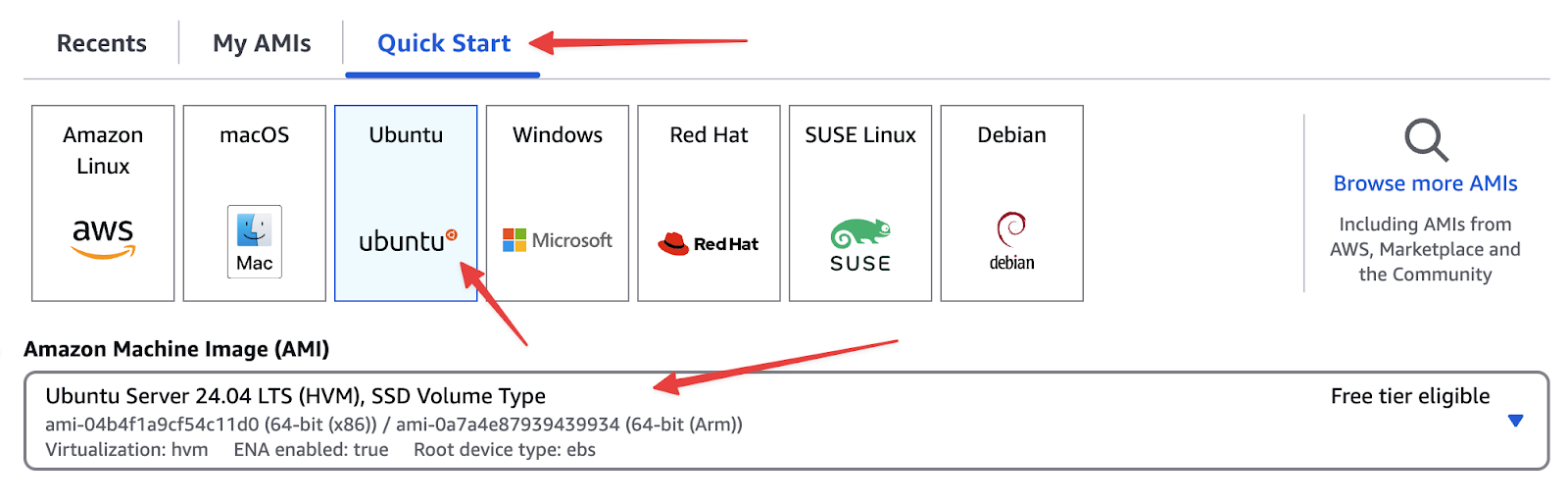
Below are instructions for creating an Ubuntu 24.04 server using AWS EC2. These instructions should be similar for other cloud services like Microsoft Azure.
Launch a New EC2 Instance
In AWS EC2, click Launch Instance
Select the following options
AMI – Ubuntu 24.04 (x86)
Instance Type – t3a.large (or your preferred size)
Key Pair – Select or create a new key pair
Subnet – Choose an appropriate subnet (e.g., us-east-1c)
Security Groups – Ensure SSH (port 22), HTTP (port 80), and port 8080 are open
Storage – ~30GB recommended
IAM Role – If you have an instance profile with needed permissions, select it here (optional but recommended)
Create and Associate an Elastic IP
Reserve a new Elastic IP in AWS
Associate it with your new EC2 instance
In your DNS settings, create an A record pointing to the Elastic IP
Connect to the EC2 Instance
Use AWS Systems Manager Session Manager or SSH
2. Update Ubuntu
After connecting, update your instance
sudo -i
sudo apt update && sudo apt upgrade -y
sudo apt dist-upgrade -y
sudo apt autoremove -y
sudo shutdown -r now
Reconnect after the reboot.
3. Download Open Source LLM Files
📌 Important – If you’ve upgraded from FileMaker Server v20, ensure you have the latest FileMaker Server v21 version of the Open Source LLM files.
🔗Download Open_Source_LLM.zip
Download directly to your server
Copy the Public Key from SSH Keys & JWT to your clipboard.
Paste the Public Key in the localllm.key.pub file.
Save (Ctrl+O, Enter) and exit (Ctrl+X).
Add Admin PKI Private Key file
sudo nano /etc/letsencrypt/auth_key/localllm.key
Copy the Private Key from SSH Keys & JWT to your clipboard.
Paste the Private Key in the localllm.key file.
Save (Ctrl+O, Enter) and exit (Ctrl+X).
Set Read & Write Permissions to letsencrypt directory again
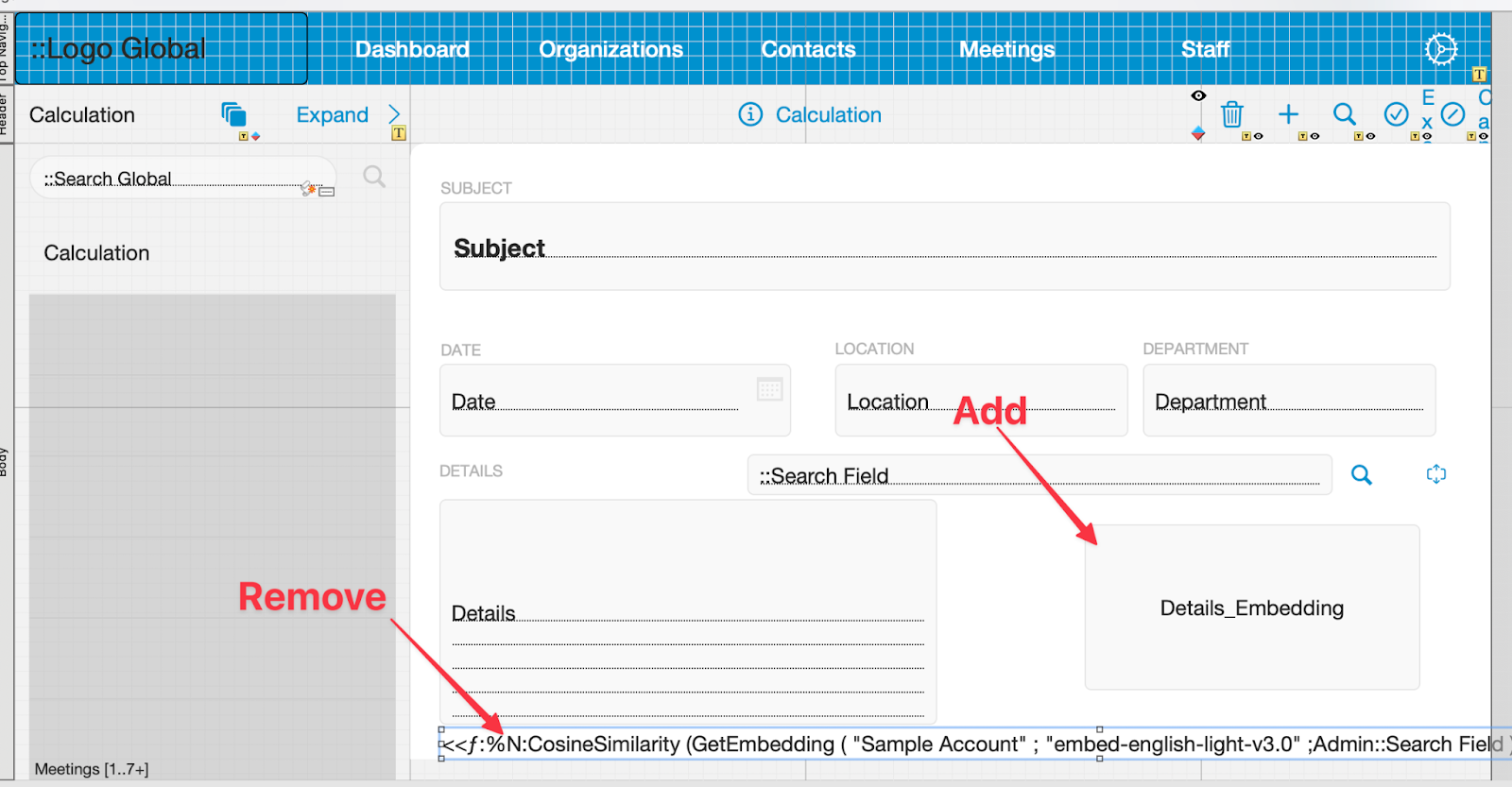
On the initial layout ( Meeting Details), enter Layout Mode and remove the Layout Calculation at the bottom of the page and add the field Details_Embedding to the layout.
Open the Script Workspace and find the Configure AI Account script
Adjust the Configure AI Account script step
Model Provider – Custom
Endpoint – https://llm.mydomain.com:8080
API key – copy and paste the JWT from SSH Keys & JWT file
Now Navigate to the Embedding Details Data script
Adjust the Insert Embedding script step
Embedding Model – all-MiniLM-L12-v2
Clear out the contents of the Details_Embedding field script
Run the Embedding Details Data script
Check and confirm that there were no errors and you have a new .fve file in the Details_Embedding field.
Keep this file open, we will use it to run a few more tests in the upcoming steps.
10. Automate the LLM Server with PM2
Create a pm2.io account.
Enter a Bucket Name
You should now see this screen
Install PM2 and link to your account
If you are still in the conda command, enter ^C to exit.
sudo shutdown -r now
sudo -i
sudo apt install npm -y
npm install -g pm2
pm2 link [[Keys from PM2 Website]]
You should now see a new message on the PM2 web page saying you are linked
Test
Go to FileMaker, clear Details_Embedding field
Run the Embedding Details Data script
Verify a new .fve file in the Details_Embedding field.
Save the process & enable auto-start
pm2 save
pm2 startup
It will return a command looking something like this: sudo env PATH=$PATH:/usr/bin /usr/local/lib/node_modules/pm2/bin/pm2 startup systemd -u ubuntu –hp /home/ubuntu
Copy and paste the command and press Enter
sudo shutdown -r now
Final Test
Go to FileMaker, clear Details_Embedding field
Run the Embedding Details Data script
Verify a new .fve file is created
🎉 Success! Your Local LLM Server is now running on Ubuntu 24.04 with automated startup.
🚀 See This in Action!
Want a live walkthrough of setting up Local LLM for FileMaker on Ubuntu? Join our Connecticut FileMaker Developers Group (CFDG) meetup where we’ll demo this setup step by step and answer all your questions!
🔗Register here
Accelerating FileMaker Development with AI Code Builders
In this post, we’ll explore how AI code builders—specifically ChatGPT Code Copilot—can help you create custom JavaScript widgets for FileMaker. We’ll walk through an example of building a signature pad, discuss best practices for prompting AI, and touch on some ethical and legal considerations involved in using AI-generated code.
Why Use an AI Code Builder?
AI code builders (e.g., ChatGPT Code Copilot, GitHub Copilot, etc.) leverage machine learning models trained on large amounts of programming data. They can assist developers by
Generating boilerplate or starter code automatically
Suggesting functions and syntax in real time
Speeding up iteration on front-end features like HTML, CSS, and JavaScript
AI Code builders allow you to build a widget or page without knowing ANY programming languages.
When used correctly, these tools can save hours of coding and debugging—especially for tasks that don’t necessarily require advanced, custom logic.
Key Considerations – Ethics, Legality, and Privacy
Ethical Impact AI-driven tools can automate mid-level coding tasks, potentially affecting developer job roles. While it streamlines certain work, the long-term impact on developer careers is worth watching.
Legal Concerns AI generators may source snippets of copyrighted code. While current U.S. legal direction makes direct infringement cases unlikely, it’s prudent to remain cautious about where the code originates.
Privacy Anything you share with an AI tool could be integrated into its broader dataset. Never upload confidential information or proprietary code without anonymizing or removing sensitive details.
Best Practices When Prompting ChatGPT
Through trial and error, the webinar revealed a handful of tips to get the best results from AI code builders
Craft a Strong Initial Prompt
Be specific about what you want, from the programming language to the functionalities and layout.
Bad Example – “Build me a signature pad using Javascript, CSS and HTML with Clear, Undo, Save and Cancel buttons.”
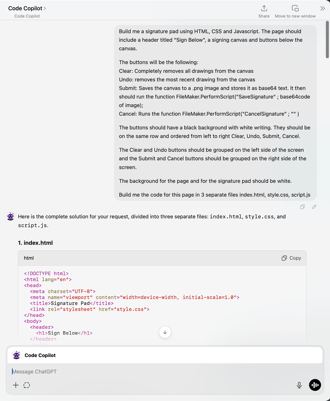
Good Example – “Build me a signature pad using HTML, CSS and Javascript. The page should include a header titled “Sign Below” a signing canvas and buttons below the canvas.
The buttons will be the following
Clear – Completely removes all drawings from the canvas
Undo – removes the most recent drawing from the canvas
Submit – Saves the canvas to a .png image and stores it as base64 text. It then should run the function FileMaker.PerformScript(“SaveSignature” ; base64code of image);
Cancel – Runs the function FileMaker.PerformScript(“CancelSignature” ; “” )
The buttons should have a black background with white writing. They should be on the same row and ordered from left to right Clear, Undo, Submit, Cancel.
The Clear and Undo buttons should be grouped on the left side of the screen and the Submit and Cancel buttons should be grouped on the right side of the screen.
The background for the page and for the signature pad should be white.
Build me the code for this page in 3 separate files index.html, style.css, script.js“
Provide Existing Code Snippets
If you’re modifying existing code, paste that code into ChatGPT’s prompt.
AI often “forgets” prior context or overwrites essential lines if you ask it to regenerate the entire codebase.
Make Incremental Requests
After generating an initial version, ask for changes in small, specific steps (e.g., “reduce the button size,” “add rounded corners,” or “change the header’s font size”).
Requesting many modifications at once can confuse the AI and lead to broken or incomplete solutions.
Ask for Only the Changes
Rather than asking for the entire file again, say “Please provide only the lines that need to be updated or added.”
This preserves previously working code and reduces the likelihood of accidental regressions.
Avoid Complex Multi-tasking
AI code builders can lose track of context during multi-part tasks. Break them down into small, separate requests.
Step-by-Step Example – Building a Signature Pad in FileMaker
Goal – Create a signature pad that captures a user’s drawing, supports undo/clear, and saves the result as a base64-encoded image inside FileMaker.
Outline Requirements
HTML – A simple layout with a canvas, header, and four buttons (Clear, Undo, Submit, Cancel).
Create a Detailed Prompt In ChatGPT, specify – “Build me a signature pad using HTML, CSS, and JavaScript, including a header titled ‘Sign Below,’ a canvas, and four buttons. The ‘Submit’ button should encode the canvas as base64 and call FileMaker.PerformScript(“Save Signature”, <base64>), etc.”
Generate Files ChatGPT returns – index.html (or combined HTML file)
style.css (for layout and styling)
script.js (draw logic and button handlers)
Refine & Test
If the AI lumps HTML/CSS/JS together, ask for separate files or placeholders for easy inclusion in FileMaker fields.
Test your initial code locally (e.g., open the HTML in a browser). Check if Undo/Clear works and if Submit/Cancel behave as expected.
Integrate Into FileMaker
Store the HTML, CSS, and JS in FileMaker fields.
Use a calculation field or a “web viewer” that substitutes in the CSS/JS code.
Ensure “Allow interaction” and “Allow JavaScript to perform FileMaker scripts” are enabled in the web viewer settings.
Add Final Touches
Prompt ChatGPT for style updates (e.g., “Make the header smaller and unbold it,” “Group the Clear and Undo buttons on the left,” etc.).
Manually adjust any margins or design elements if ChatGPT’s output isn’t pixel-perfect.
Result: A working signature pad that you can open in FileMaker, draw on, and automatically store the output as a base64-encoded image—perfect for e-signatures or doodles.
Beyond Signatures – A Time-Tracking Example
The webinar also showcased a more advanced JavaScript widget – a time-tracking dashboard built entirely via AI-assisted code, then dropped into FileMaker. It features
Dynamic plus and delete buttons for line items
Light and dark modes
Start and Stop Timers
The entire front-end (HTML, CSS, JS) generated by ChatGPT with minimal manual intervention
This advanced use case illustrates how quickly you can evolve from small widgets (like a signature pad) to more complex applications—increasing interactivity and user experience within FileMaker, all powered by AI-generated front-end code.
Closing Thoughts
AI tools like ChatGPT can drastically reduce development time and open doors to front-end interactions you might not otherwise build by hand. The key is prompt engineering—learning how to give precise instructions and incremental feedback.
Remember
Always keep ethical, legal, and privacy considerations in mind.
Triple-check AI-generated code for security issues and correctness.
Use a “rinse and repeat” process – prompt, refine, test, and integrate.
By leveraging these best practices, you’ll be well on your way to creating powerful, user-friendly JavaScript widgets that enhance FileMaker’s functionality—without having to become a front-end development expert.
In modern manufacturing, quick and accurate access to data can make the difference between streamlined production and costly delays. Yet, traditional database search methods often fall short, requiring exact keywords and precise input. This is where AI-powered semantic search within Claris FileMaker solutions can transform operations, enabling users to retrieve information using natural language queries.
At Kyo Logic, we’ve implemented semantic search capabilities to revolutionize how manufacturers access and interact with their data. Let’s dive into how this technology works, its applications, and how it can improve your manufacturing processes.
What Is AI-Powered Semantic Search?
Semantic search goes beyond matching exact keywords by understanding the intent and context behind a query. It can also be combined with traditional search for even more uses. Powered by AI and natural language processing (NLP), semantic search interprets phrases, synonyms, and even contextual nuances. In FileMaker, this functionality can be achieved by integrating AI-powered tools like Claris Connect, external AI services (e.g., OpenAI APIs), or scripting custom machine-learning models.
For example:
Instead of searching “inventory: steel bolts 2mm,” users could type, “I need small steel bolts for automotive assembly.”
Semantic search understands “small” to mean “2mm” and “automotive assembly” to refine results to the relevant inventory category.
Use Case: Intelligent Inventory Management
One of the most impactful applications of semantic search is in inventory management, where manufacturers often deal with thousands of SKUs and components.
Scenario:
A manufacturer needs to locate specific materials—say, heat-resistant steel components for an automotive project. Traditional keyword searches might require exact terms like “steel component heat-resistant.” With semantic search, a user could simply query, “What materials can withstand high heat for automotive use?”
How It Works in FileMaker:
Data Structuring: Inventory data is enriched with metadata, such as material properties, usage, and categories.
AI Model Integration: A pre-trained NLP model is connected to FileMaker via an API or a microservice, such as OpenAI’s GPT API.
Query Processing: When a user inputs a query, the system translates it into structured search parameters (e.g., “find all inventory tagged with ‘heat-resistant’ AND ‘automotive’”).
Results Display: The system provides a ranked list of relevant inventory items, including links to more detailed specifications.
Benefits for Manufacturers
Improved Data Retrieval:
Traditional searches depend on exact terms, which can lead to missed results. Semantic search captures broader intent, ensuring the right data is always accessible.
Example: A query like “fasteners for aerospace” can return bolts and rivets tagged with “aerospace grade.”
Enhanced Decision-Making:
Rapid access to contextualized data allows engineers and managers to make timely and informed decisions, minimizing production bottlenecks.
Predictive models can suggest alternatives or complementary components.
Operational Efficiency:
By reducing the time spent searching for information, semantic search enables staff to focus on high-value tasks, such as quality assurance or innovation.
Implementing Semantic Search in FileMaker
Here’s how you can get started:
Audit Your Database:
Ensure your FileMaker database is well-structured and includes descriptive fields for metadata.
Example: Add fields like “material type,” “application,” and “specifications” to inventory tables.
Connect to AI Tools:
Use Claris Connect or integrate external AI APIs for semantic processing.
Example: OpenAI’s API can process natural language queries and return contextually relevant results.
Develop Custom Scripts:
Write FileMaker scripts that send queries to the AI tool, process results, and present them in a user-friendly interface.
Use custom layouts to display ranked search results dynamically.
Ready to Transform Your FileMaker System?
Semantic search isn’t just about searching smarter—it’s about enabling faster decisions and boosting operational efficiency. If you’re ready to explore how AI-driven capabilities can integrate into your FileMaker solution, contact us today for a consultation. Let’s take your manufacturing processes to the next level.
In the modern manufacturing landscape, efficiency, precision, and customer satisfaction are key drivers of success. While Enterprise Resource Planning (ERP) systems are designed to manage core business operations like production, inventory, and supply chain management, Customer Relationship Management (CRM) systems focus on managing customer interactions, sales, and aftercare. Traditionally, these systems have operated in silos, but integrating ERP and custom CRM solutions into a unified platform offers a powerful way to streamline operations, enhance customer satisfaction, and optimize resource management.
In this post, we’ll explore the benefits of ERP integration with custom CRM systems to create a unified manufacturing solution that can manage everything from production processes to customer relationships in one seamless platform.
The Importance of ERP and CRM Integration
ERP and CRM systems are critical tools for manufacturers, but when these systems operate separately, it creates inefficiencies, data silos, and communication gaps. Here’s why integration is vital for modern manufacturing:
Holistic View of Operations and Customer Relationships: ERP systems handle the internal workings of a manufacturing business, such as production schedules, raw material procurement, and inventory management. On the other hand, CRM systems focus on external interactions like managing sales pipelines, tracking customer feedback, and handling post-sale services. Integrating the two provides a 360-degree view of the entire operation, from production to customer service. This unified approach ensures that all departments are aligned, which leads to more informed decision-making and better operational outcomes.
Streamlined Processes: By integrating ERP with CRM, manufacturers can streamline processes across the board. For example, when a sales team logs a new customer order in the CRM, once approved, the ERP system can automatically update inventory levels, adjust production schedules, and ensure that the necessary materials are procured. This eliminates the need for manual data entry and reduces the risk of errors, ultimately improving efficiency.
Improved Data Accuracy: In a non-integrated environment, data often needs to be entered into multiple systems, which increases the chances of discrepancies and errors. ERP-CRM integration creates a single source of truth, ensuring that all departments work with accurate, up-to-date information. This leads to improved forecasting, better inventory management, and more effective production planning.
Key Benefits of Integrating ERP with Custom CRM Solutions
A unified manufacturing solution that combines ERP and custom CRM offers several key benefits:
Enhanced Customer Experience: When ERP and CRM systems are integrated, customer-facing teams have access to critical information, such as order status, inventory availability, and delivery timelines. This means they can provide customers with accurate, real-time updates, enhancing communication and overall customer satisfaction. Additionally, having insight into production schedules allows sales teams to set realistic expectations and deliver on promises. In worst case situations, customers can receive important and timely notifications if some variance exists.
Better Demand Forecasting and Inventory Management: Integration of ERP with custom CRM solutions allows for better demand forecasting. Customer behavior and order history tracked through the CRM can inform production planning in the ERP system, ensuring that manufacturers produce just the right amount of inventory to meet demand without overstocking. Eliminating delays in the system improves supply chain efficiency and reduces waste.
Automated Workflows and Reduced Manual Effort: Integrated systems allow manufacturers to automate critical workflows, such as processing customer orders, updating inventory levels, or generating invoices. When a sales order is logged in the CRM, the ERP system can automatically trigger actions like production planning, raw material procurement, and shipping logistics. This ERP integration eliminates the need for manual intervention, reduces the risk of human error, and frees up staff to focus on higher-value tasks.
Improved Collaboration Between Departments: ERP-CRM integration creates greater transparency across departments, allowing for seamless collaboration. When sales, production, and customer service teams all have access to the same data, they can work together more effectively. Sales teams can inform production teams about upcoming orders, while customer service teams can provide post-sale support with full visibility into the production and delivery process.
Building a Unified Manufacturing Solution with ERP and Custom CRM
Creating a unified manufacturing solution requires careful planning and customization to ensure that both ERP and CRM systems work together seamlessly. Here’s how custom CRM solutions can enhance ERP integration:
Customization for Industry-Specific Needs: Every manufacturing business has unique workflows, processes, and customer management needs. Off-the-shelf ERP and CRM solutions may not provide the flexibility required to handle specific industry challenges. A custom CRM can be designed to integrate fully with an existing ERP system, providing features that are tailored to the manufacturer’s specific operational and customer management requirements.
Seamless Integration with Third-Party Tools: Many manufacturers use third-party tools to manage various aspects of their operations, from production floor automation systems to supply chain management software. A custom CRM solution can be designed to integrate seamlessly with these tools, ensuring that all systems work together to provide a unified view of operations. This level of integration enhances both internal efficiency and customer service.
Enhanced Reporting and Analytics: A unified ERP-CRM system provides manufacturers with powerful reporting and analytics capabilities. By combining operational data from the ERP with customer data from the CRM, manufacturers can generate comprehensive reports that provide insights into production performance, customer satisfaction, and sales trends. This information is invaluable for strategic decision-making and long-term business planning.
Flexibility for Growth and Expansion: As manufacturers grow, their systems must scale with them. A custom CRM solution integrated with ERP offers the flexibility needed to accommodate growth. Whether it’s adding new product lines, expanding into new markets, or scaling up production capacity, a unified system can adapt to the changing needs of the business.
Why Manufacturers Should Invest in ERP-CRM Integration
For manufacturers looking to stay competitive, ERP-CRM integration is no longer optional—it’s a necessity. Here’s why investing in a unified solution is crucial:
Increased Efficiency: Integrated systems streamline operations, reduce redundancies, and improve productivity. When ERP and CRM work together, manufacturers can automate repetitive tasks, reduce manual data entry, and ensure that all departments have access to accurate, real-time data.
Better Decision-Making: With access to both operational and customer data in one system, manufacturers can make more informed decisions. Whether it’s optimizing production schedules based on customer demand or adjusting inventory levels to meet future orders, integrated systems provide the insights needed for proactive decision-making.
Scalability for Future Growth: As the manufacturing landscape evolves, businesses need systems that can adapt to new challenges and opportunities. ERP-CRM integration provides the scalability manufacturers need to grow, innovate, and stay ahead of the competition.
Competitive Advantage: In today’s market, customers expect a seamless experience from the initial sales inquiry to product delivery. By integrating ERP with CRM, manufacturers can meet these expectations, providing exceptional service while optimizing internal processes. This not only enhances customer satisfaction but also gives manufacturers a competitive edge.
Integrating ERP systems with custom CRM solutions offers manufacturers a powerful way to unify operations, improve efficiency, and provide better customer service. A unified manufacturing solution enables seamless communication between departments, enhances demand forecasting, and automates workflows—resulting in greater operational efficiency and customer satisfaction.
At Kyo Logic, we specialize in providing tailored ERP-CRM integrations that meet the specific needs of manufacturers. Contact us today to learn how we can help your business achieve a unified, efficient, and scalable solution.
If you want to learn more, you can reach out to us here.
In the manufacturing sector, compliance with industry regulations isn’t just critical, it’s non-negotiable. From managing data privacy to adhering to safety standards, manufacturers are subject to a wide range of compliance requirements. However, ensuring compliance is not just about ticking boxes; it’s about creating a seamless, efficient system that integrates compliance management into everyday business operations. This is where custom CRM systems (Customer Relationship Management) come in. Tailoring a CRM to meet manufacturing compliance standards can provide manufacturers with the tools they need to track regulations, manage documentation, and ensure the highest levels of operational efficiency.
The Role of CRM in Manufacturing Compliance
Customer Relationship Management systems, traditionally used to manage customer interactions and sales, have evolved to become indispensable tools for process optimization across various industries, including manufacturing. Today, a custom CRM system can be designed to not only track customer data but also to manage compliance workflows, certifications, and regulatory reporting.
For manufacturers, these systems can be tailored to manage and automate key compliance-related activities, such as:
Tracking Certifications and Audits: Ensuring that products meet industry standards often involves multiple certifications and audits. A custom CRM system can track these certifications, notify the team of upcoming audit deadlines, and store all relevant documentation in one place.
Data Security Compliance: In industries where data security is paramount, such as aerospace or pharmaceuticals, a CRM system can be customized to ensure compliance with data protection regulations like GDPR or HIPAA. This includes managing how data is collected, stored, and shared, ensuring full traceability and secure access.
Product Traceability: Many manufacturers are required to trace every step of their production process, from raw materials to finished goods. Custom CRM systems can automate the tracking of these processes, ensuring that manufacturers can quickly provide traceability data in the event of a recall or regulatory audit.
Tailoring CRM Systems for Industry-Specific Standards
Each manufacturing sector has its own unique set of compliance challenges, making customization of a CRM system critical for success. A few key industries and their compliance needs include:
Pharmaceutical Manufacturing: This industry is heavily regulated by bodies such as the FDA. Manufacturers must track everything from the sourcing of raw materials to the testing of finished products. A custom CRM system can integrate compliance management for Good Manufacturing Practices (GMP), product recalls, and quality assurance tracking.
Automotive Manufacturing: Compliance in automotive manufacturing often revolves around safety and emissions standards. A custom CRM can track vehicle testing, document certifications like IATF 16949, and ensure that parts suppliers meet quality requirements.
Food Manufacturing: The food industry is subject to strict safety and hygiene regulations, such as those mandated by the FDA and HACCP. A tailored CRM system can help manufacturers ensure that all suppliers meet safety standards and that all products can be traced back to their source, a requirement in the event of a food safety recall.
Key Features of a Compliance-Focused CRM System
A CRM system designed to meet manufacturing compliance standards should include a few essential features to ensure smooth operations:
Compliance Tracking and Alerts: Custom CRM systems can track regulatory requirements and send automated alerts when certifications, audits, or inspections are due. This ensures that nothing slips through the cracks and that manufacturers remain compliant without having to manually monitor deadlines.
Document Management: Manufacturing compliance involves an immense amount of documentation. From safety reports to quality assurance records, keeping track of these documents is critical. A CRM system can store all relevant documents securely and allow for easy access during audits, inspections, or internal reviews.
Automated Reporting: Many regulatory bodies require detailed reporting on production practices, safety measures, and environmental impact. A customized CRM system can generate these reports automatically, ensuring that they are accurate, up-to-date, and formatted correctly for submission.
Audit Trail: An audit trail feature in a CRM system is crucial for demonstrating compliance. This feature tracks every change made to data or processes, ensuring that there is a record of who made the change, when it was made, and why. In the event of an audit, having a comprehensive audit trail can be the difference between passing and failing.
Benefits of Customizing CRM Systems for Compliance
A one-size-fits-all CRM may be sufficient for managing customer data, but when it comes to compliance in manufacturing, a tailored solution offers significant advantages:
Increased Operational Efficiency: With a customized CRM system, compliance tracking and documentation become automated, reducing the time and effort required to maintain compliance. This frees up your team to focus on more value-added activities rather than manual compliance management.
Reduced Risk of Non-Compliance: By automating compliance tracking and maintaining a detailed audit trail, a custom CRM system helps manufacturers avoid the costly consequences of non-compliance, such as fines, legal actions, and reputational damage.
Enhanced Traceability: In industries where product traceability is essential, such as pharmaceuticals and food manufacturing, a custom CRM system provides the tools needed to ensure full traceability. This not only helps manufacturers meet regulatory requirements but also improves supply chain transparency and customer confidence.
Tailored to Industry Needs: Off-the-shelf CRM systems are not built with the complexities of manufacturing compliance in mind. By customizing your CRM, you can ensure that it meets the specific needs of your industry, whether that involves tracking environmental compliance, managing supplier certifications, or ensuring product quality.
The Future of CRM Systems in Manufacturing Compliance
As regulations become more stringent and the manufacturing landscape grows more complex, the role of CRM systems in compliance management will continue to evolve. Future CRM systems will likely include more advanced features such as artificial intelligence for predictive compliance and machine learning to analyze and improve compliance processes.
For manufacturers, the key to staying compliant in this changing environment is to invest in a CRM system that is flexible, scalable, and fully tailored to their needs. By doing so, manufacturers can not only stay ahead of regulatory changes but also use their CRM system as a strategic tool for driving efficiency and innovation.
Tailoring a CRM system to meet manufacturing compliance standards is no longer a luxury; it’s a necessity. In industries where regulations are becoming increasingly complex, manufacturers need a system that can handle everything from tracking certifications to ensuring data security. A custom CRM solution provides the tools needed to streamline compliance processes, reduce the risk of penalties, and improve overall operational efficiency.
Whether your business is in pharmaceuticals, automotive, or food manufacturing, a tailored CRM system can help you stay compliant while optimizing your operations. Investing in the right CRM system today will pay off in the long run, ensuring that your business remains competitive, efficient, and compliant in the face of evolving industry standards.
If you want to learn more, you can reach out to us here.
Efficiency is everything. The ability to streamline operations, minimize downtime, and increase productivity directly impacts a company’s bottom line. With ever-evolving industry demands, manufacturers require systems that can keep up with their unique production workflows. This is where custom ERP solutions (Enterprise Resource Planning) come into play. Custom ERP solutions provide automated business solutions that are tailored to the specific needs of your manufacturing operation, integrating everything from supply chain management to custom CRM solutions, ensuring maximum manufacturing efficiency.
The Importance of Custom ERP Solutions for Manufacturing
A custom ERP solution is a comprehensive software platform designed to integrate and manage all core business processes in real-time. Unlike generic ERP systems, custom ERP solutions are tailored to meet the specific workflows and operational needs of your business.
In the manufacturing sector, this customization is crucial because manufacturers deal with complex processes, such as inventory management, production planning, and quality control. By integrating these functions into a single platform, custom ERP systems provide manufacturers with a unified view of their entire operation, making it easier to manage resources, forecast production needs, and respond to changing market conditions.
Key benefits of custom ERP solutions include:
Streamlining Operations: By centralizing all operational processes, custom ERP solutions eliminate the need for multiple, disconnected systems. This integration leads to improved communication between departments, faster decision-making, and greater overall efficiency.
Reducing Downtime: With real-time monitoring and automation, custom ERP systems can predict potential issues and alert management before they cause significant disruptions. This predictive maintenance capability helps to reduce equipment downtime and keeps production lines running smoothly.
Increasing Productivity: By automating routine tasks and improving workflow visibility, custom ERP solutions enable employees to focus on higher-value activities. This not only boosts productivity but also improves the overall quality of the final product.
Tailoring ERP Systems to Meet Specific Manufacturing Workflows
One of the biggest advantages of custom ERP solutions is the ability to tailor the system to fit the unique demands of your manufacturing process. No two manufacturers are alike, and off-the-shelf ERP systems often fail to meet the specific needs of each business. A custom ERP system, on the other hand, is designed with your workflows in mind, ensuring that it aligns with your operational goals.
Here’s why tailoring ERP systems is essential for maximizing manufacturing efficiency:
Flexibility for Industry-Specific Requirements: Manufacturing businesses operate in a variety of sectors—automotive, aerospace, electronics, consumer goods, and more. Each sector has its own set of regulatory requirements, production standards, and challenges. A custom ERP system can be designed to meet these specific requirements, ensuring that compliance and operational efficiency go hand in hand.
Optimizing Production Workflows: Custom ERP solutions allow manufacturers to map out and automate their unique production workflows. From raw material procurement to finished product delivery, each stage can be tracked and optimized for efficiency. With real-time data on production performance, manufacturers can quickly identify bottlenecks, make adjustments, and improve throughput.
Enhanced Inventory Management: Inventory management is a critical component of manufacturing efficiency. Too much inventory ties up capital, while too little can cause production delays. Custom ERP solutions offer advanced inventory tracking and forecasting tools that ensure manufacturers maintain the optimal inventory levels to meet demand without overstocking.
Integration with Automated Business Solutions: Many manufacturers are implementing automated business solutions, such as robotics and IoT (Internet of Things) devices, to improve efficiency. A custom ERP system can seamlessly integrate with these technologies, providing real-time data and automation across the entire production process. This leads to better resource allocation, more accurate demand forecasting, and faster time to market.
How Custom CRM Solutions Contribute to Manufacturing Efficiency
In addition to managing production workflows, a custom ERP solution can also integrate with custom CRM solutions to enhance customer relationship management. This is particularly important in industries where manufacturers work closely with clients to meet specific product specifications or timelines.
Here’s how custom CRM solutions play a role in boosting manufacturing efficiency:
Streamlined Client Communication: A custom CRM allows manufacturers to track all interactions with clients in real-time, ensuring that production schedules are aligned with customer expectations. This improves communication and helps manufacturers meet delivery deadlines without compromising quality.
Demand Forecasting: By analyzing customer data, custom CRM solutions can help manufacturers anticipate future demand, allowing them to adjust production schedules accordingly. This results in reduced lead times, more efficient resource planning, and better alignment with market demand.
Improved Product Customization: Many manufacturers offer custom products or variations to meet specific client needs. A custom CRM system integrated into the ERP allows for seamless management of these custom orders, ensuring that specifications are accurately communicated to the production floor and delivered on time.
The Role of Automation in Custom ERP Solutions
Automation is a key feature of custom ERP systems that contributes directly to manufacturing efficiency. By automating repetitive tasks, custom ERP solutions reduce the likelihood of human error and speed up processes that would otherwise require manual intervention.
Key areas where automation drives efficiency include:
Production Scheduling: Automated scheduling tools ensure that production timelines are optimized, resources are allocated efficiently, and there is minimal downtime between production runs.
Supply Chain Management: Custom ERP systems can automate the tracking and management of suppliers, ensuring that raw materials are ordered and received on time, reducing the risk of production delays.
Quality Control: By automating quality control processes, custom ERP solutions can help manufacturers detect defects earlier in the production process, reducing waste and improving product quality.
Custom ERP solutions are essential for manufacturers looking to stay competitive in today’s fast-paced market. By streamlining operations, reducing downtime, and increasing productivity, custom ERP systems provide manufacturers with the tools they need to optimize their workflows and meet industry demands. Moreover, the integration of custom CRM solutions and automated business processes ensures that manufacturers can not only meet but exceed customer expectations while maintaining operational efficiency.
At Kyo Logic, we specialize in developing tailored ERP solutions that address the unique challenges of the manufacturing sector. If you’re ready to take your manufacturing efficiency to the next level, contact us today to learn how our custom ERP solutions can help your business thrive.
If you want to learn more, you can reach out to us here.
At KyoLogic, we’re FileMaker experts. We believe it’s a powerful platform that allows small to midsize firms the ability to create virtually any piece of software we need. It’s had an incredible impact on the software development space, and drastically expanded the audience for custom applications.
Claris, FileMaker’s developer, recently released a new piece of software that has the potential to be equally game-changing: Claris Connect. It can integrate seamlessly with applications developed in FileMaker, but it’s true purpose is to integrate with… well, just about everything else. Claris Connect can even function independently of FileMaker, but it’s the combination of the two platforms that really creates amazing opportunities for workflow.
Claris Connect itself is designed to create connections— which it refers to as flows— between otherwise independent pieces of software. It fills a unique software need known as iPaaS (integrated Platform as a Service). It allows users to automate otherwise time-consuming tasks. For example, one flow may automatically upload specific documents to your team’s cloud storage as soon as they arrive in your inbox, even pinging your team over chat that there’s an update. Everything from Slack to PayPal to Twitter can be integrated into these flows, leaving your team to focus on the most important tasks.
It’s the symbiotic relationship it forms with FileMaker, though, that allows for truly comprehensive solutions. While FileMaker could “talk” to these platforms previously, it would have to do so through the FileMaker Data API. It was generally time-intensive and cumbersome, and involved creating additional plug-ins or scripts to get two applications to interface. Now all of that is unnecessary. It’s the equivalent of daisy changing a series of power strips to plug a computer into a wall outlet, versus being able to plug the computer directly into the outlet itself.
Through Claris Connect, any custom FileMaker application can now “plug” into this suite of powerful business tools. Oftentimes, businesses that require custom tools would choose to run every aspect of their business through a series of FileMaker nodes. It’s effective, but it’s also costly, especially when other, potentially more cost-effective solutions exist.
Claris Connect allows for these custom solutions to plug into an existing work ecosystem. It means less time, money, and resources spent creating new applications. Your new sales software, internal report system, or HR portal can lean on applications like Slack or DocuSign.
Similarly, the ability to create scripts in FileMaker means templates in Connect can be customized even further. If there’s a gap in a particular workflow, FileMaker can fill in those missing links. For instance, in a flow where Shopify orders automatically create a Quickbooks invoice, FileMaker can act as the hub, updating contact info and invoices and sending an automated message when the order is fulfilled.
Together, these two offerings mean any business can create incredibly complex systems to maximize their resources and ensure their employees can focus on other areas of opportunity. If you’re looking for ways to see how FileMaker and Connect can change the way your business operates, you can contact KyoLogic here.
We use cookies to ensure that we give you the best experience on our website. If you continue to use this site we will assume that you are happy with it.




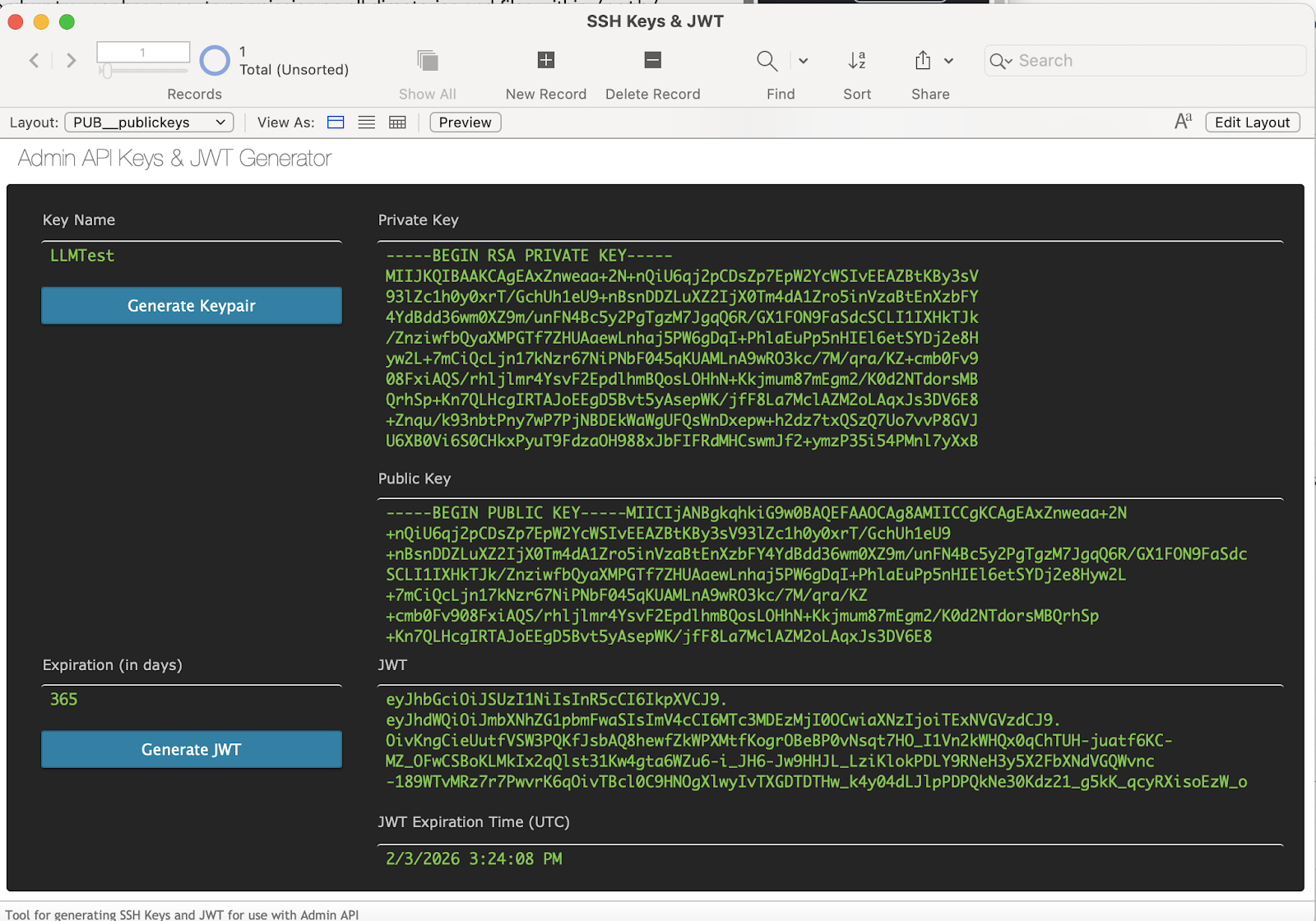 Add Admin PKI Public Key file
 Install PM2 and link to your account
If you are still in the conda command, enter ^C to exit.
Install PM2 and link to your account
If you are still in the conda command, enter ^C to exit.