Audit Log & Version History: the FileMaker add-on that knows who changed what

Free FileMaker add-on

Add field-level accountability and record restore points without building a custom history system from scratch.

Get the Audit Log & Version History add-on

Tell us where to send it and we will email your download link right away.

FileMaker does not include audit logging or version history out of the box, and building either one yourself is a bigger project than it looks. Kyo Logic's Audit Log & Version History add-on gives your FileMaker solution both in a few minutes of setup: a filterable log of every field-level change, plus optional record versioning that lets you restore an entire record to an earlier state at the click of a button.

Here is the moment this add-on exists for. A quantity on an order is wrong. The customer says they never approved the change. Three people had the record open this week, and every one of them says it was not me. Without an audit log, that conversation goes nowhere. With one, you open the log, filter to the order, and see the field, the old value, the new value, who made the edit, and when.

Why is audit logging hard in FileMaker?

Audit logs and versioning are not native FileMaker features, and they are not easy to implement well. A homegrown approach usually means a separate history table, scripted writes on every layout, and careful handling of edge cases like deletions and related records.

The harder problem is maintenance. Most audit tools, homegrown or otherwise, need constant attention as the solution grows. Add a field and someone has to remember to log it. Add a table and someone has to wire it in. The log quietly falls behind the schema, and the gaps only surface when you need the history you did not capture.

The add-on is built to avoid that trap. It takes only a few minutes to set up and runs seamlessly from there.

What the add-on logs out of the box

The core functionality covers the cases a homegrown script usually misses:

  • Every non-container field that changed in the record is logged with its value, even if the field is not on the layout where the edit happened.
  • Standard exceptions such as summary fields, calculations, globals, and record metadata can be included or excluded based on naming conventions, so you decide what counts as signal.
  • Logs are easy to view and filter, so finding one change in one record does not mean scrolling raw data.

A user edits a record

Every changed non-container field is captured with its value

The log records who made the change and when

An authorized user can view and filter the history

Setup is two script triggers, not a rebuild

To begin logging on a new table or section of your solution, only two script triggers are required. That is the whole integration step. No per-field configuration, no rebuilding layouts, no audit schema to design. It also means the add-on keeps up as your solution grows: bringing a new table under logging is minutes of work, not a project.

Related records tell the rest of the story

Many edits that matter do not happen on the record you are looking at. An order looks untouched while its line items changed underneath it. Related Record Logging, the first of two optional features, extends the audit trail across those relationships:

  • Changes made to related records are logged.
  • Related record creation and deletion are logged too, so a deleted line item leaves evidence instead of a gap.
  • You choose which related tables to include or exclude by changing only one script step.

Every version is a restore point

Record Versioning & Restoration is the second optional feature, and it turns the audit trail into an undo button. When any change is made, the add-on stores the previous version of the record: who made the edit, when, and the value of all fields unless you have excluded them from logging. When Related Record Logging is enabled, versioning covers related records as well.

Every stored version is a restore point. At the click of a button, you can revert an entire record back to an earlier state. Versions are viewable and searchable, so recovering from a bad import or an accidental edit starts with finding the right moment in time, not reconstructing it from memory.

A record is about to change

The previous version is stored, with who, when, and every field value

Versions accumulate as a searchable history

One click restores the record to any earlier state

What this could look like in your solution
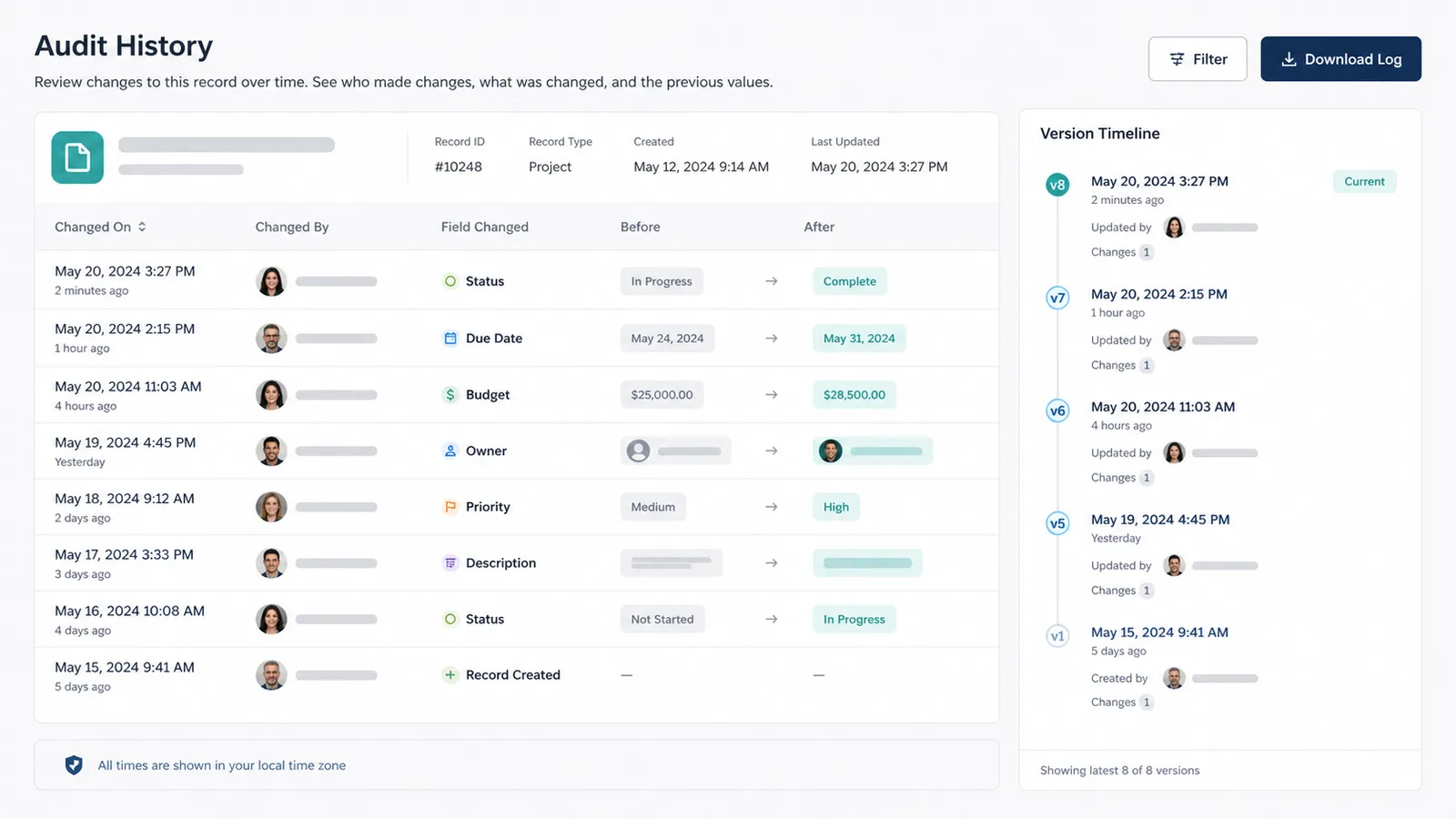
Sample FileMaker audit log view listing changed-on, changed-by, field changed, and before and after values for each record edit
A sample audit log view for a solution like yours. Conceptual illustration, not a product screenshot. The final add-on interface may differ.

For most teams, the payoff shows up in three places. Troubleshooting gets faster because the log answers what changed before anyone starts guessing. Accountability gets easier because who and when are recorded facts instead of recollections. And recovery gets safer because restoring a record is a click, not a manual re-entry from a backup.

Kyo Logic builds custom Claris FileMaker and manufacturing software for businesses across New England and beyond, and the Audit Log & Version History add-on comes from the same place as the rest of our work: problems our clients actually hit. If you want to see the add-on running against a real solution, or you want help deciding which tables deserve logging first, reach out. Setup takes minutes. The first time it answers who changed this, it will have paid for itself.

Frequently asked questions

Does FileMaker have built-in audit logging?

No. FileMaker does not natively track field-level changes or record versions. Audit logging requires either a custom build or an add-on like Kyo Logic's Audit Log & Version History tool.

What does the add-on capture when a record changes?

It logs the value of every non-container field that changed in the table, along with who made the change and when, even if the field is not on the current layout. Summary fields, calculations, globals, and record metadata can be included or excluded by naming convention.

Can I undo a change to a record?

Yes, with the optional Record Versioning & Restoration feature. Every change stores the previous version of the record as a restore point, and you can revert the entire record to any earlier state at the click of a button.

How much work is it to add logging to a new table?

Two script triggers. Related record logging for a table is included or excluded by changing one script step.

 

Introducing the Custom Import Tool Add-On for FileMaker

Importing data into FileMaker should be easier than it often is.

For many FileMaker systems, imports fall into one of two categories. The first option is a pre-mapped import script, which works well when the incoming file always follows the exact same structure. The second option is FileMaker’s built-in import interface, which offers greater flexibility but often exposes too much of the database structure.

Neither option is ideal for everyday users.

Pre-mapped imports are simple but rigid. If a spreadsheet changes slightly, the import can break or require developer intervention. The built-in import interface is flexible, but it often requires users to understand field names, table structure, naming conventions, and the database backend.

The Custom Import Tool Add-On is designed to give FileMaker users a better middle ground.

It allows users to import data using friendly, easy-to-understand column labels instead of exact back-end field names. Users can create, save, modify, and reuse import templates, making recurring imports easier while still allowing flexibility when the incoming file changes.

What Is the Custom Import Tool Add-On?

The Custom Import Tool Add-On is a FileMaker add-on designed to make importing data more user-friendly, flexible, and controlled.

Instead of asking users to map spreadsheet columns directly to FileMaker field names, the tool lets a full-access user define friendly header options in advance. Once those mappings are configured, end users can build import orders using labels that make sense to them.

For example, instead of seeing a back-end field name like Customer::cust_primary_email, a user could simply choose “Customer Email.”

That small change can make imports much easier for non-technical users.

The tool also supports saved import templates. If a vendor, customer, department, or third-party system sends files in a consistent format, users can save that import structure and reuse it later. If the file changes, they can modify the template or make a one-time adjustment during the import.

Out of the box, the tool supports up to 20 columns, with the option to add more columns if needed.

Why FileMaker Imports Can Be Difficult

Imports are one of those tasks that seem simple until real-world data gets involved.

Spreadsheet columns may be renamed. Column order may change. Extra fields may be added. Some rows may need to be skipped. Some columns may not be needed at all. A file may contain multiple pieces of data in one column that need to be split into separate FileMaker fields.

For technical users, those issues are manageable. For everyday users, they can be frustrating quickly.

A user should not need to understand every field name in the database just to import a spreadsheet. They should not have to worry about accidentally mapping data to the wrong field. They should not have to call a developer every time a file has one extra column.

The Custom Import Tool Add-On is designed to reduce that friction.

It gives users a cleaner interface to choose what gets imported, what gets skipped, and how incoming data should be handled before it reaches the final destination table.

How It Works

The Custom Import Tool uses a staging-table approach.

Instead of importing data directly into the final destination table, the tool first imports the incoming file into a staging table. This gives users a chance to preview and review the data before completing the import.

That staging table is intentionally open and editable. Users can make corrections, clean up values, remove unwanted rows, or adjust the imported data before submitting it to the main system.

The basic workflow looks like this:

  1. A full-access user maps friendly header labels to real FileMaker fields.
  2. The data is imported into a staging table.
  3. An end user selects or creates an import template.
  4. The user selects which columns to import from the incoming file.
  5. The user can preview, edit, skip, or adjust data as needed.
  6. The final import script moves the staged data into the appropriate FileMaker table.

This gives users more control without exposing them to unnecessary back-end complexity.

Flexible Import Templates

One of the most useful features of the tool is the ability to create and modify templates.

If a company regularly imports files from the same source, such as a vendor spreadsheet, customer data export, inventory file, or order report, users can create a template once and reuse it.

Templates can also be adjusted on the fly.

If a file arrives with a slightly different column order, users can adjust the import order. If a column should be ignored, they can mark it to skip. If the change is temporary, they can make a one-time adjustment without permanently changing the saved template.

This makes the tool useful for both recurring imports and unpredictable one-off imports.

Preview Before You Commit

A major benefit of the staging-table approach is that users can see what they are about to import before the data reaches the final table.

That matters because import mistakes can be messy.

If data is imported directly into production records, a bad mapping or messy spreadsheet can create duplicate records, overwrite important values, or place information in the wrong fields. By staging the data first, users have a safer place to review what is happening.

Skipped rows and skipped columns are highlighted, making it easier to see what will and will not be included in the final import. Users can also edit the staged data before completing the process.

That creates a more forgiving import experience.

Create and Update Records in One Import

The Custom Import Tool can also support matching fields, allowing imports to create new records and update existing ones in a single process.

For example, a company may import a customer list in which some customers already exist in FileMaker, and others are new. With match fields configured, the import process can identify existing records and update them, and create new records where no match is found.

This can be especially useful for customer lists, inventory files, product catalogs, order updates, membership records, and other recurring data sources.

Ideas for How to Use It

The Custom Import Tool Add-On can be used anywhere FileMaker users need a more flexible import process.

Common use cases include:

  • Importing customer or prospect lists
  • Updating product catalogs
  • Importing inventory counts
  • Processing vendor price sheets
  • Loading order data from external systems
  • Importing membership or registration lists
  • Updating contact information
  • Cleaning and reviewing data before final import
  • Creating controlled imports for non-technical users
  • Handling recurring spreadsheet formats from customers, vendors, or departments

It can also be customized further with scripting.

For example, a developer could parse data from one incoming column into multiple FileMaker fields. A single “Full Name” column could be split into first and last name fields. A combined address field could be parsed into street, city, state, and ZIP code. A product description could be analyzed and separated into category, size, or model fields.

The add-on provides the import framework, but FileMaker developers can extend it to fit the needs of the specific system.

The Bottom Line

The Custom Import Tool Add-On is designed to make FileMaker imports easier, safer, and more flexible.

It provides users with a user-friendly interface for selecting import columns, saving templates, skipping rows or columns, previewing data, and making adjustments before the final import. At the same time, it gives developers a controlled structure for mapping fields, defining match logic, and customizing the import process.

For businesses that rely on recurring spreadsheet imports, this can save time, reduce errors, and make FileMaker easier for everyday users to work with.

Importing data will always require some structure. The goal of this tool is to make that structure easier for non-technical users to manage, reuse, and understand.

Download Custom Import Tool Add-on

Please complete this form to download the FREE file.

This field is for validation purposes and should be left unchanged.
Name(Required)