
Expert
Keep up to date with the latest news and thought leadership.
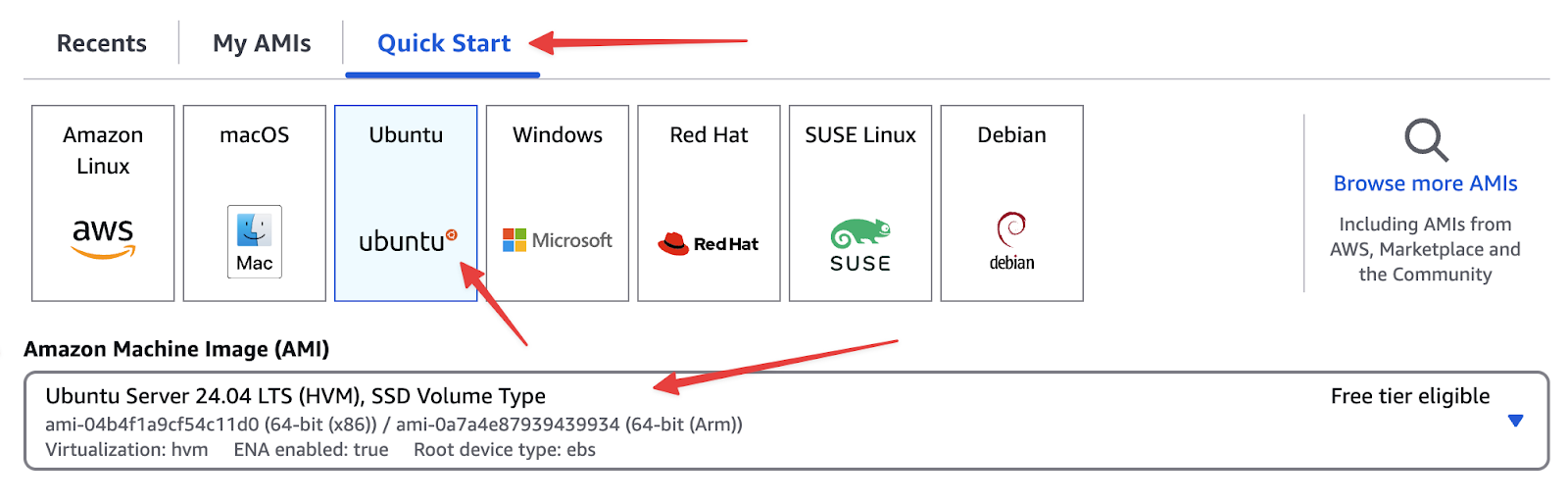
sudo -i
sudo apt update
sudo apt upgrade
sudo apt dist-upgrade
sudo apt autoremove
sudo shutdown -r now
After the reboot, reconnect to your instance.
cd ~
sudo apt install mysql-server
sudo mysql
Set the root user’s MySQL password
ALTER USER 'root'@'localhost' IDENTIFIED WITH mysql_native_password BY 'MYSQL_DATABASE_PASSWORD';
Exit;
Secure the MySQL installation
sudo mysql_secure_installation
Follow the prompts (you can answer “Yes” to remove anonymous users, disallow root remote login, etc.).
Create the Keycloak database and user
sudo mysql -u root -pMYSQL_DATABASE_PASSWORD
In sql
CREATE DATABASE keycloak CHARACTER SET utf8mb4 COLLATE utf8mb4_unicode_ci;
CREATE USER 'keycloak'@'localhost' IDENTIFIED BY 'MYSQL_DATABASE_PASSWORD';
GRANT ALL PRIVILEGES ON keycloak.* TO 'keycloak'@'localhost';
FLUSH PRIVILEGES;
exit;
Note – Replace MYSQL_DATABASE_PASSWORD with a strong, unique password.
cd ~
sudo snap install core
sudo snap refresh core
sudo snap install --classic certbot
sudo ln -s /snap/bin/certbot /usr/bin/certbot
sudo shutdown -r now
After the reboot, reconnect again.
cd ~
sudo ufw allow ssh
sudo ufw allow 80/tcp
sudo ufw allow 8443/tcp
sudo ufw enable
cd ~
sudo certbot certonly --standalone --preferred-challenges http -d keycloak.mydomain.com --dry-run
If the dry run succeeds, run it again for the actual cert
sudo certbot certonly --standalone --preferred-challenges http -d keycloak.mydomain.com
Deny HTTP traffic (if desired)
sudo ufw deny 80/tcp
Enable auto-renewal
sudo systemctl list-units --type timer
sudo systemctl enable snap.certbot.renew.timer
sudo systemctl status snap.certbot.renew.timer
Configure Hooks for Auto-Renew
Certbot needs to open port 80 temporarily when renewing. Create pre- and post-hook scripts
cd /etc/letsencrypt/renewal-hooks/pre
sudo nano pre-hook.sh
Contents of pre-hook.sh
# Open port 80
ufw allow 80/tcp
Save (Ctrl+O, Enter) and exit (Ctrl+X). Then make executable
sudo chmod +x pre-hook.sh
cd /etc/letsencrypt/renewal-hooks/post
sudo nano post-hook.sh
Contents of post-hook.sh
# Close port 80
ufw deny 80/tcp
#Reboot Server
sudo shutdown -r now
Save and exit, then make executable
sudo chmod +x post-hook.sh
Test renewal
sudo certbot renew --dry-run
This should restart your server
sudo apt install openjdk-21-jdk
sudo apt install zip
Create a directory and download Keycloak
sudo mkdir -p /opt/keycloak
cd /opt/keycloak
sudo wget https://github.com/keycloak/keycloak/releases/download/26.1.0/keycloak-26.1.0.zip
sudo unzip keycloak-26.1.0.zip -d /opt/keycloak
sudo rm keycloak-26.1.0.zip
Create Keycloak user and group
sudo groupadd -r keycloak
sudo useradd -r -g keycloak -d /opt/keycloak -s /sbin/nologin keycloak
Give keycloak user ownership and privileges to keycloak and letsencrypt
cd /opt
sudo chown -R keycloak: keycloak
sudo chmod -R 755 /opt/keycloak/keycloak-26.1.0/bin/
sudo chmod -R 755 /etc/letsencrypt
sudo nano /opt/keycloak/keycloak-26.1.0/conf/keycloak.conf
Insert/Update
db=mysql
db-username=keycloak
db-password=MYSQL_DATABASE_PASSWORD
Note – (This is the password from above)
https-certificate-file=/etc/letsencrypt/live/keycloak.mydomain.com/fullchain.pem
https-certificate-key-file=/etc/letsencrypt/live/keycloak.mydomain.com/privkey.pem
hostname=keycloak.mydomain.com
Note – (Replace keycloak.mydomain.com with your domain name)
https-port=8443
Build and start Keycloak
cd /opt/keycloak/keycloak-26.1.0
sudo bin/kc.sh build
sudo -E bin/kc.sh bootstrap-admin user
Note – This is to create a temporary user for access to keycloak. Once in keycloak, it is recommended that a permanent user be created and this temporary user deleted.
sudo -E bin/kc.sh start
Keycloak should now be running on https://keycloak.mydomain.com:8443/.
Log into keycloak using the account created above and create a new user. Make sure to give this new user all available roles.
sudo nano /etc/systemd/system/keycloak.service
Sample Contents (adjust as needed)
# /etc/systemd/system/keycloak.service
[Unit]
Description=Keycloak Server
After=syslog.target network.target mysql.service
Before=httpd.service
[Service]
User=keycloak
Group=keycloak
SuccessExitStatus=0 143
ExecStart=!/opt/keycloak/keycloak-26.1.0/bin/kc.sh start
[Install]
WantedBy=multi-user.target
Enable and Reboot
sudo systemctl daemon-reload
sudo systemctl enable keycloak
sudo shutdown -r now
sudo systemctl status keycloak
Keycloak should now run automatically on system boot.
sudo nano /opt/keycloak/keycloak-26.1.0/conf/keycloak.conf
Change (or add)
https-port=443
Rebuild Keycloak
cd /opt/keycloak/keycloak-26.1.0
sudo bin/kc.sh build
Update Firewall Rules
sudo ufw delete allow 8443/tcp
sudo ufw allow 443/tcp
sudo shutdown -r now
Keycloak will now listen on standard HTTPS port 443, accessible at https://keycloak.mydomain.com.
You’ve successfully installed Keycloak 26 on an Ubuntu 24.04 EC2 instance, configured MySQL as the backend, and secured Keycloak with a valid SSL certificate using Certbot. You also set up systemd to ensure Keycloak starts automatically on reboot and moved it to port 443 for a cleaner URL.
Next Steps
Log in to your Keycloak admin console at https://keycloak.mydomain.com using the admin username/password you created.
Configure your realms, clients, and identity providers as needed.
Review Keycloak logs and manage system resources to ensure optimal performance.
For more instructions on how to configure your keycloak account, you can follow the instructions from our CFDG presentation on the topic here – https://youtu.be/-bqww9ggDjA
With your identity and access management solution in place, you can focus on integrating Keycloak into your applications and services! If you have any questions or run into issues, consult the official Keycloak documentation or your AWS documentation for further guidance.
That’s it! You now have a working Keycloak 26 setup in AWS. If you have any questions—or if you’d like to learn more about our FileMaker consulting services—visit us here. Expert
Let’s talk about how we can help you streamline, scale, or innovate—on your terms.
Start the Conversation